Understanding Web Browsers
A web browser is the software used to open, view, and interact with content on the World Wide Web. When you enter a web address or follow a link, the browser does much more than retrieve a finished page. It locates the appropriate web server, requests the necessary resources, interprets the received files, and turns them into the page shown on your screen.
Understanding this process helps explain why a page may load in stages, why one address can lead to many file requests, and why network or server problems can prevent a website from appearing correctly.
What Is a Web Browser?

A web browser is client software that requests webpages from web servers and presents them in a form people can use. In this context, a client is a program that asks another computer or service for information.
The browser is not the same as a website. A website is a collection of related web resources, while a webpage is an individual page or document within that collection. A web server is a system that stores or generates resources and responds to requests for them.
The browser receives files and data from a server, interprets their instructions, and creates the visual and interactive page. The files may include Hypertext Markup Language (HTML), Cascading Style Sheets (CSS), JavaScript, images, video, fonts, and other resources.
Why Web Browsers Matter
Website files are not automatically displayed as a complete, usable page. A browser requests those files, understands their different roles, and combines their results. HTML generally describes the content and structure, CSS provides styling and layout rules, and JavaScript can control interactive or changing behavior.
The browser also supports common actions such as following links, entering information into forms, selecting controls, and scrolling through content. When JavaScript or another page resource changes the document, the browser can update the relevant parts of the display.
Browsers also create accessibility information from webpage content. This information can be represented in an accessibility tree, which assistive technologies can use to understand elements such as headings, links, controls, and text. The usefulness of that information also depends on how the webpage has been constructed.
How a Browser Loads and Displays a Website
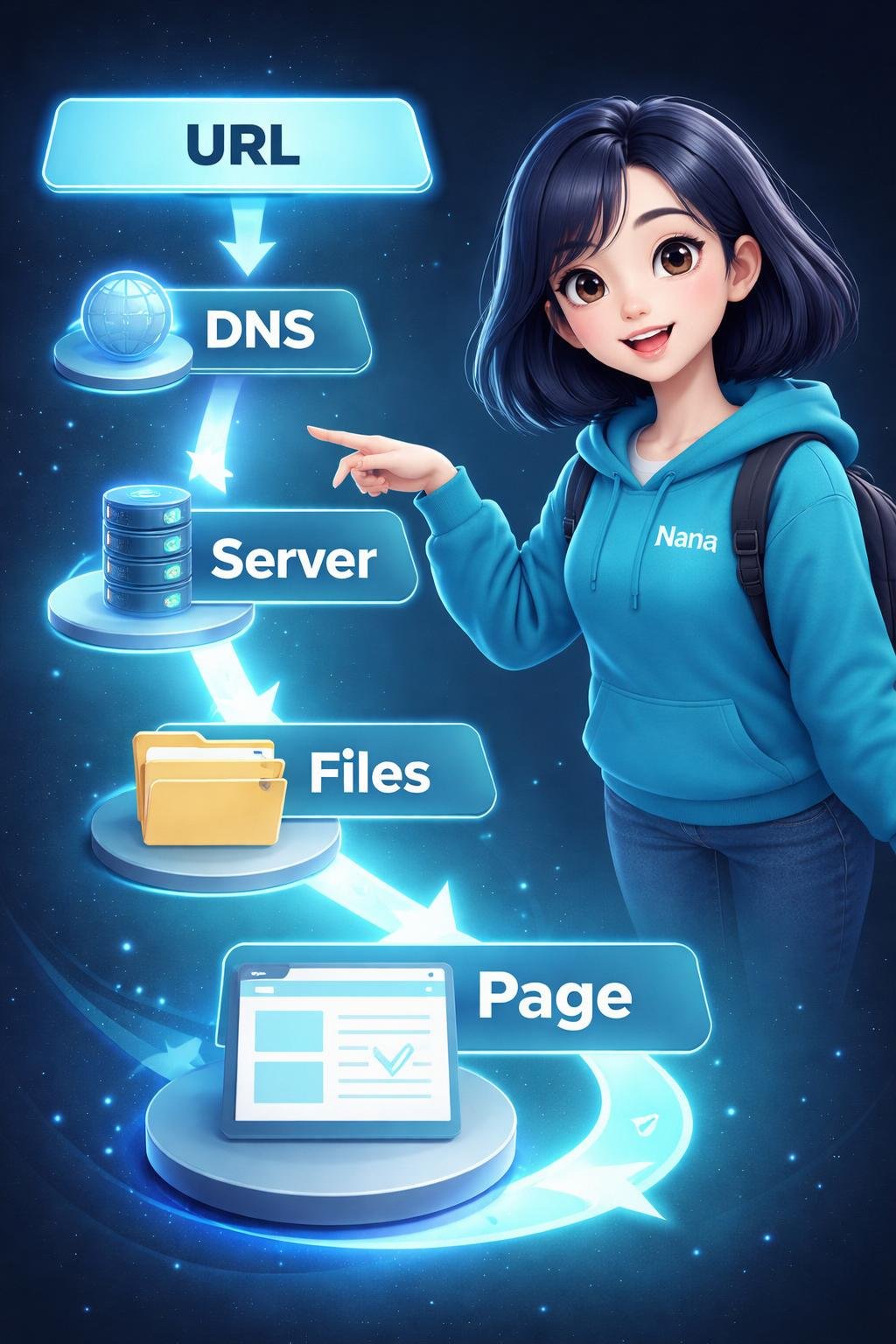
- The browser accepts a location. You enter a Uniform Resource Locator (URL) or follow a link. The URL identifies the resource that the browser should request.
- It finds the server. The browser uses the Domain Name System (DNS) to obtain the Internet Protocol (IP) address associated with the relevant domain. The IP address helps network systems direct data to the server.
- It sends a request. The browser sends a Hypertext Transfer Protocol (HTTP) or secure HTTP (HTTPS) request over the network. Web communication uses the wider TCP/IP networking system to transport data between the client and server.
- The server responds. The server sends a response containing the requested data or information about the request. Website files travel as network data that is divided into packets and reassembled at the destination.
- The browser parses the HTML. Parsing means reading and interpreting structured data. The browser converts HTML elements into a document structure called the Document Object Model (DOM) tree.
- It requests referenced resources. The HTML may point to stylesheets, scripts, images, fonts, video, and other files. These resources can require additional requests rather than arriving as one finished package.
- It processes styles and structure. The browser applies CSS rules to relevant document elements. It uses document and styling information to determine which content should be rendered and how it should appear.
- It calculates layout. The browser works out the size and position of visible elements within the page.
- It paints and composites the result. Painting records or produces the visual details that become pixels. Compositing combines relevant layers into the final image shown on the screen.
- It executes JavaScript. JavaScript can run during loading or afterward. It may modify the DOM, respond to user actions, request more data, or change what appears on the page.
- It updates the display. Changes to content, styles, layout, or visible layers can cause some rendering work to run again. The page can therefore continue changing after its initial appearance.
This is a conceptual sequence rather than a claim that every browser performs every operation in exactly the same order or with the same internal design. Browsers may overlap network, parsing, script, layout, painting, and compositing work.
Key Parts of the Browser and Webpage Process
Addresses, Networks, and Servers
| Part | Beginner-friendly meaning |
|---|---|
| URL | The address of a web resource. It can contain a protocol, domain or subdomain, path, and other information. |
| Protocol | A set of communication rules. HTTP and HTTPS are protocols used for web requests and responses. |
| Domain | A human-readable name associated with an online destination. |
| Path | The part of a URL that identifies a particular location or resource within a site. |
| DNS | The Domain Name System, which helps translate a domain into the IP address needed to locate its server. |
| Web server | A system that receives web requests and returns resources or response information. |
| HTTP request | A message from the browser asking a server for a resource or performing a supported web action. |
| HTTP response | The server’s reply, which can contain requested data and information about the outcome. |
Files That Describe the Page
- HTML: Describes the content and structural elements of a webpage, such as paragraphs, headings, links, and controls.
- CSS: Supplies rules for presentation, including visual styling and layout.
- JavaScript: A programming language that can provide interaction, modify page content, and control changing behavior.
- Media assets: Separate resources such as images, audio, and video that a page may reference.
These roles are related but not interchangeable. HTML can reference CSS, JavaScript, and media, while those resources influence how the resulting page looks or behaves.
Internal Structures and Rendering Work
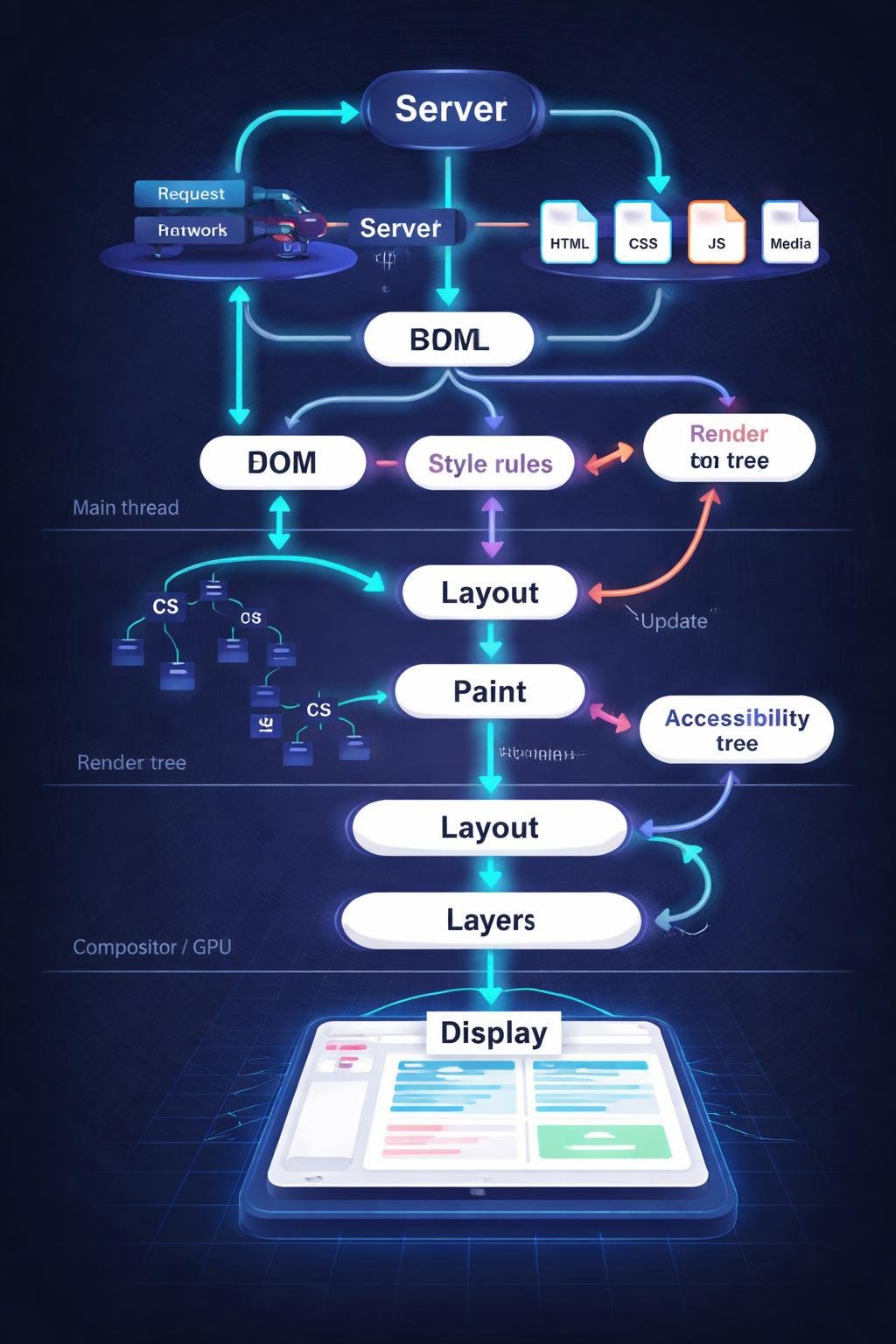
- DOM tree: The Document Object Model representation created from the HTML. It organizes document elements into a tree-like structure that scripts and browser systems can work with.
- Render tree: A rendering-oriented structure based on document content and applicable styles. It helps the browser determine what needs to be laid out and displayed.
- Accessibility tree: A representation of relevant page information for assistive technologies. It is derived from the document and its interpreted accessibility information.
- Layout: The calculation of the dimensions and positions of page elements.
- Painting: The stage that records or draws visual details such as text, colors, borders, and images.
- Compositing: The process of combining painted layers to form the final displayed image.
Threads, the Compositor, and the GPU
A browser divides work among internal components. In a typical rendering design, JavaScript, style processing, and layout can use a renderer’s main thread. Other work may be handled separately. A compositor can combine layers and update frames, while a graphics processing unit (GPU) can assist with suitable graphics operations.
Some scrolling can be handled through compositor work without waiting for all main-thread activity. However, internal designs and behavior vary, so these terms describe important relationships rather than a universal implementation for every browser and device.
Everyday Examples of Browser Use

Example: Entering an address. A person enters a complete URL in the browser. The browser identifies the destination, uses DNS as needed, contacts the server, and begins processing the returned resources.
Example: Following a link. Selecting a link gives the browser another URL to open. That address may identify a different page on the same website or a resource on another server.
Example: Loading text and images. The initial HTML can contain text and references to image files. The browser may display part of the page while it continues requesting and processing the images.
Example: Using interactive content. A page control may trigger JavaScript when selected. The script can change the document, reveal more content, or request additional information, depending on how the website was built.
Example: Scrolling. After rendering a page that is taller than the viewing area, the browser displays different parts as the person scrolls. Compositing and graphics work may help update the visible frame.
Example: Using assistive technology. A screen reader or another assistive tool may use browser-generated accessibility information to identify headings, links, text, and controls. The result depends partly on whether the webpage supplies meaningful structure and labels.
Benefits and Limitations of Web Browsers
Benefits
- Browsers turn website code, data, and media into readable and usable pages.
- They bring several resource types together within one interface.
- They support links, forms, controls, scripts, and changing content.
- They create accessibility information that assistive technologies can use.
- They can update part or all of a display when page content changes.
Limitations and Trade-offs
A browser depends on more than its own software. It needs suitable network access to retrieve remote resources, and the server must provide a response. If the network is interrupted, the server is unavailable, or a required file cannot be obtained, the page may be incomplete or fail to load.
The browser can only interpret the resources and instructions it receives. Missing images, incorrect code, unavailable scripts, or unsuitable page structure can affect the result. A browser cannot automatically turn poorly prepared content into a complete or accessible experience.
Rendering also requires processing work. Complex scripts, style calculations, layout changes, painting, and compositing can affect how a page behaves on a particular system. Actual behavior depends on the page, browser implementation, device, network, and server rather than on a single factor.
Common Web Browser Misunderstandings
A browser is not a website
The browser is the client program used to request and display web content. The website consists of resources made available through one or more servers.
A browser is not the web server
The browser usually sends requests, while the server receives those requests and returns responses. They have different roles even though they communicate with each other.
A URL is more than a domain name
A domain is one part of a URL. A complete URL can also identify the protocol, a subdomain, a path, and additional resource information.
A webpage does not usually arrive as one finished picture
The browser commonly receives HTML and requests other resources referenced by it. It then processes structure, styles, scripts, and media to create the displayed result.
HTML does not perform every job
HTML primarily describes content and structure. CSS commonly controls presentation and layout, JavaScript can provide behavior, and media files supply assets such as images or video. The browser combines their effects when presenting the page.
DigiNana Beginner Guide
Fictional educational example: DigiNana enters a web address for an imaginary recipe page. This story illustrates the process; it is not a report of a real website test or a specific browser interface.
- DigiNana enters a URL containing an HTTPS protocol, a domain, and a path for the recipe.
- The browser uses DNS to find the IP address associated with the domain.
- The browser contacts the server and sends an HTTPS request for the resource identified by the path.
- The server returns HTML data. As the browser reads it, the browser discovers references to a stylesheet, a script, and recipe images.
- The browser requests those additional resources and builds the DOM from the HTML.
- It applies the CSS, calculates the layout, and paints and composites the visible page.
- The JavaScript adds an interactive control that can reveal another section of the recipe.
- When DigiNana uses that control, the script changes the document and the browser updates the display.
The verified technical idea behind this fictional example is that browsers locate servers, exchange requests and responses, process multiple resource types, and perform rendering work to display and update pages.
Practical Tips
- Check the full URL. Look beyond the site name. A URL can contain a protocol, domain, and path that identify where the browser is going.
- Recognize the protocol. The beginning of the address may show HTTP or HTTPS. HTTPS protects the transport of request and response data, but it does not independently prove that all website content is trustworthy.
- Allow required resources to load. Text, styles, scripts, images, and other resources may arrive through separate requests, so different parts of a page can appear at different times.
- Try the page again after a temporary problem. A brief network interruption or server issue may stop a request from completing. Reloading or reopening the page later can initiate new requests, although it cannot repair a continuing network or server failure.
- Separate browser problems from website problems. A page may fail because of the connection, server, resource files, page code, or browser environment. The visible symptom alone may not identify the cause.
Browser controls and troubleshooting options can differ, so current official documentation is the appropriate source for product-specific steps.
Browser Safety and Privacy Basics

HTTPS encrypts the transport of request and response data between the browser and the relevant HTTPS endpoint. This helps protect data while it is being transmitted. It does not guarantee that the website’s information, operator, downloads, or requested actions are trustworthy or safe.
Check the complete URL carefully, especially before entering sensitive information. Similar-looking domains or unexpected paths can lead somewhere other than the destination you intended to visit.
Browsers may provide security and privacy controls, but their names, locations, and behavior can change. Consult current official browser or service documentation before making decisions that depend on a particular control or security condition.
Frequently Asked Questions
Is a browser the same as a website?
No. A browser is client software that requests and displays web resources. A website is a collection of related content and resources supplied through web servers.
What happens after I enter a URL?
The browser interprets the address, uses DNS to locate the relevant server when needed, sends an HTTP or HTTPS request, receives response data, and processes the returned resources. It then performs steps such as DOM creation, styling, layout, painting, and compositing.
What do HTML, CSS, and JavaScript do?
HTML describes content and structure, CSS supplies styling and layout rules, and JavaScript can provide programming logic and interactive behavior. Their effects are interpreted and combined by the browser.
Why does a browser request multiple files?
An HTML document can refer to separate stylesheets, scripts, images, fonts, video, and other resources. The browser requests the files needed to construct and operate the page.
What does DNS contribute?
DNS helps the browser find the IP address associated with a domain. That address is used to direct network communication toward the appropriate server.
What does HTTPS mean during loading?
HTTPS means that HTTP communication is transported securely between the browser and the HTTPS endpoint. It protects data in transit but does not serve as a complete judgment about the website’s trustworthiness.
Why can a page change after it first appears?
More resources may finish loading, JavaScript may modify the DOM, or a user action may trigger a change. The browser can then repeat relevant style, layout, painting, or compositing work to update the display.
Final Takeaway
A web browser is client software that locates web servers, requests website resources, and turns the responses into usable pages. It interprets HTML, applies CSS, executes JavaScript, incorporates media, and builds internal structures such as the DOM and accessibility tree.
To produce the visible result, the browser calculates layout, paints visual details, and composites layers. It can repeat parts of this work whenever scripts, loaded resources, or user actions change the content.
References
- How browsers load websites – Learn web development | MDN — https://developer.mozilla.org/en-US/docs/Learn_web_development/Getting_started/Web_standards/How_browsers_load_websites
- How the web works – Learn web development | MDN — https://developer.mozilla.org/en-US/docs/Learn_web_development/Getting_started/Web_standards/How_the_web_works
- The Rendering Critical Path — https://www.chromium.org/developers/the-rendering-critical-path/
Image Credits
The five DigiNana Wiki visuals for this article are original educational illustrations created with AI assistance. They are conceptual illustrations and must not be interpreted as verified photographs, exact software interfaces, actual device specifications, or guaranteed technical configurations.
Disclaimer
This article provides general educational information. Technical information, browser interfaces, product features, security conditions, and service availability can change. When accurate and current details are important, consult the latest official documentation for the relevant browser, technology, product, or service.