
Introduction
Learning how to connect Bluetooth devices makes it easier to use supported accessories with a smartphone or computer. Common examples include headphones, speakers, keyboards, mice, audio headsets, printers, and scanners.
The exact procedure depends on the operating system, the accessory, and the available Bluetooth features. However, the usual process is to confirm support, turn on Bluetooth, place the accessory in pairing mode, select it from the available devices, and follow any prompts.
What Is a Bluetooth Device Connection?
A Bluetooth device connection allows a supported phone or computer to work with a compatible accessory. Before the devices can be used together, they usually need to be paired.
Pairing is the setup process in which the phone or computer identifies the accessory, the user selects it, and any required on-screen instructions are completed. After this process, the accessory appears as a paired device.
An accessory must normally be discoverable before it appears in the list of available devices. Accessory documentation may describe this state as discoverable mode or pairing mode. Simply turning on an accessory does not necessarily place it in that mode.
Why Bluetooth Connections Matter
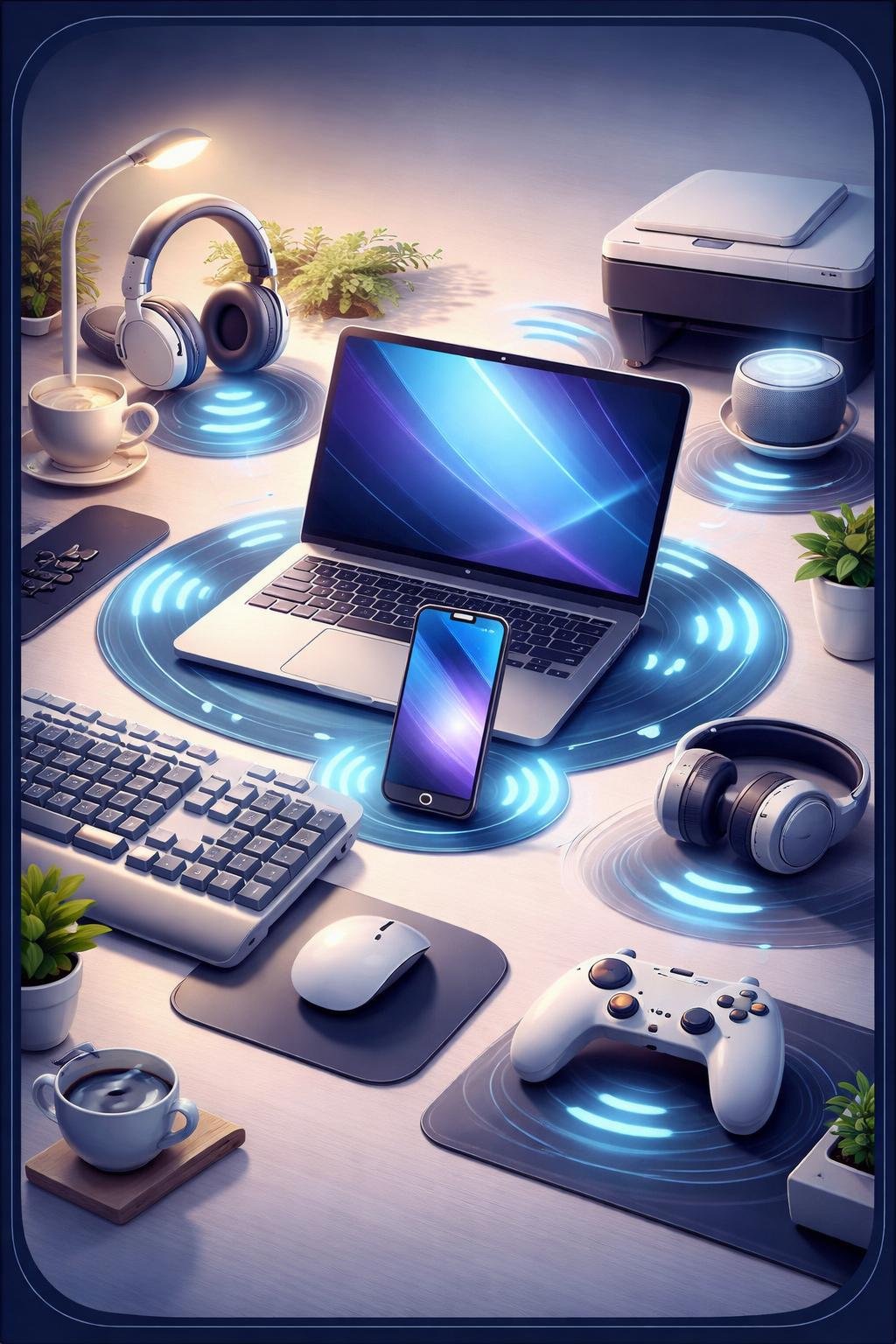
Bluetooth connections make it possible to use many supported accessories without relying on a direct connection to the phone or computer. Windows documentation lists accessories such as keyboards, mice, phones, speakers, headphones, printers, and scanners.
A Bluetooth-capable Chromebook can connect to keyboards, mice, speakers, headphones, and audio headsets. Apple documentation also describes using Bluetooth accessories with an iPhone for streaming music and videos, playing games, and using keyboards.
These uses depend on the capabilities of the platform and the individual accessory. A device category being supported does not mean that every product in that category will work with every phone or computer.
How Bluetooth Pairing Works
General pairing sequence
- Confirm that the phone or computer supports Bluetooth.
- Turn on Bluetooth on the phone or computer.
- Turn on the accessory and place it in discoverable or pairing mode.
- Open the platform’s Bluetooth controls and view the available devices.
- Select the correct accessory.
- Follow any additional instructions shown on the screen.
The method used to enter pairing mode varies by accessory, so consult its current instructions when necessary.
Windows
On a Windows computer, first confirm that Bluetooth is supported and turned on. Make the accessory discoverable, select it from the available Bluetooth devices, and follow any additional prompts. Once pairing is complete, Windows can automatically reconnect to the paired device when Bluetooth is on and the devices are within range.
Chromebook
On a Bluetooth-capable Chromebook, turn on Bluetooth from the time or Quick Settings area. Confirm that the accessory has Bluetooth enabled and is discoverable or in pairing mode. Select Pair new device, choose the accessory, and follow the on-screen instructions.
iPhone
Apple documentation confirms that Bluetooth accessories must be paired with an iPhone. Supported uses include streaming music and videos, playing games, and using keyboards. The supplied sources do not provide enough evidence here to reproduce current interface steps, so check the current Apple instructions for the iPhone software version in use.
Android and macOS
Current Android and macOS pairing procedures are not established by the supplied sources. Users of these platforms should follow current official platform and accessory documentation rather than assuming that Windows, Chromebook, or iPhone steps will be identical.
Requirements, Settings, and Compatibility
Both sides of the connection must have the necessary Bluetooth capability. The phone or computer must support Bluetooth, and the accessory must be designed to pair with the relevant type of host device.
A Windows computer without built-in Bluetooth support may be able to gain Bluetooth capability through a USB Bluetooth adapter. Compatibility should still be checked for the computer, operating system, adapter, and intended accessory.
The accessory must be turned on and placed in its discoverable or pairing mode. The phone or computer must also have Bluetooth turned on so that it can display available devices.
Windows supports Swift Pair for supported nearby accessories that are in pairing mode. Chromebooks can use Fast Pair with supported accessories. These features apply only when the accessory and platform support the relevant pairing option.
Platform restrictions can also affect compatibility. According to the supplied Chromebook documentation, Android phones cannot pair with Chromebooks through Bluetooth.
Everyday Bluetooth Accessory Examples
Example: Headphones or speakers. Supported headphones, speakers, and audio headsets can be paired with compatible computers or phones for audio use.
Example: Keyboard or mouse. Windows and Bluetooth-capable Chromebooks support compatible Bluetooth keyboards and mice. Apple documentation also identifies keyboards as an iPhone Bluetooth accessory use.
Example: Printer or scanner. Windows documentation lists Bluetooth printers and scanners among the types of accessories that can be paired, although an individual product still needs suitable support and compatibility.
Example: Accessories used while playing games. Apple documentation describes playing games as one use for Bluetooth accessories connected to an iPhone. This does not establish compatibility with any particular gaming product.
These examples describe general accessory categories documented by the supplied sources and are not compatibility claims about specific products.
Benefits and Limitations
Benefits
- Supported phones and computers can connect to common accessory categories such as headphones, speakers, keyboards, and mice.
- Windows also documents pairing with phones, printers, and scanners.
- A paired Windows device can reconnect automatically when Bluetooth is on and the devices are within range.
- Supported Windows accessories may use Swift Pair, while supported Chromebook accessories may use Fast Pair.
Limitations
- The computer or phone needs Bluetooth support.
- The accessory must be compatible with the intended platform and use.
- An accessory may not appear until it is placed in pairing or discoverable mode.
- Windows automatic reconnection depends on Bluetooth being on and the devices being within range.
- Features and restrictions differ between platforms.
- According to Chromebook documentation, an Android phone cannot pair with a Chromebook through Bluetooth.
Bluetooth availability alone does not establish that two particular devices are compatible, so product-specific documentation remains important.
Common Bluetooth Misunderstandings
Every computer has Bluetooth built in
Not every computer necessarily includes Bluetooth support. Microsoft documents a USB Bluetooth adapter as an option for adding Bluetooth capability to a Windows computer when needed.
Turning on an accessory always makes it discoverable
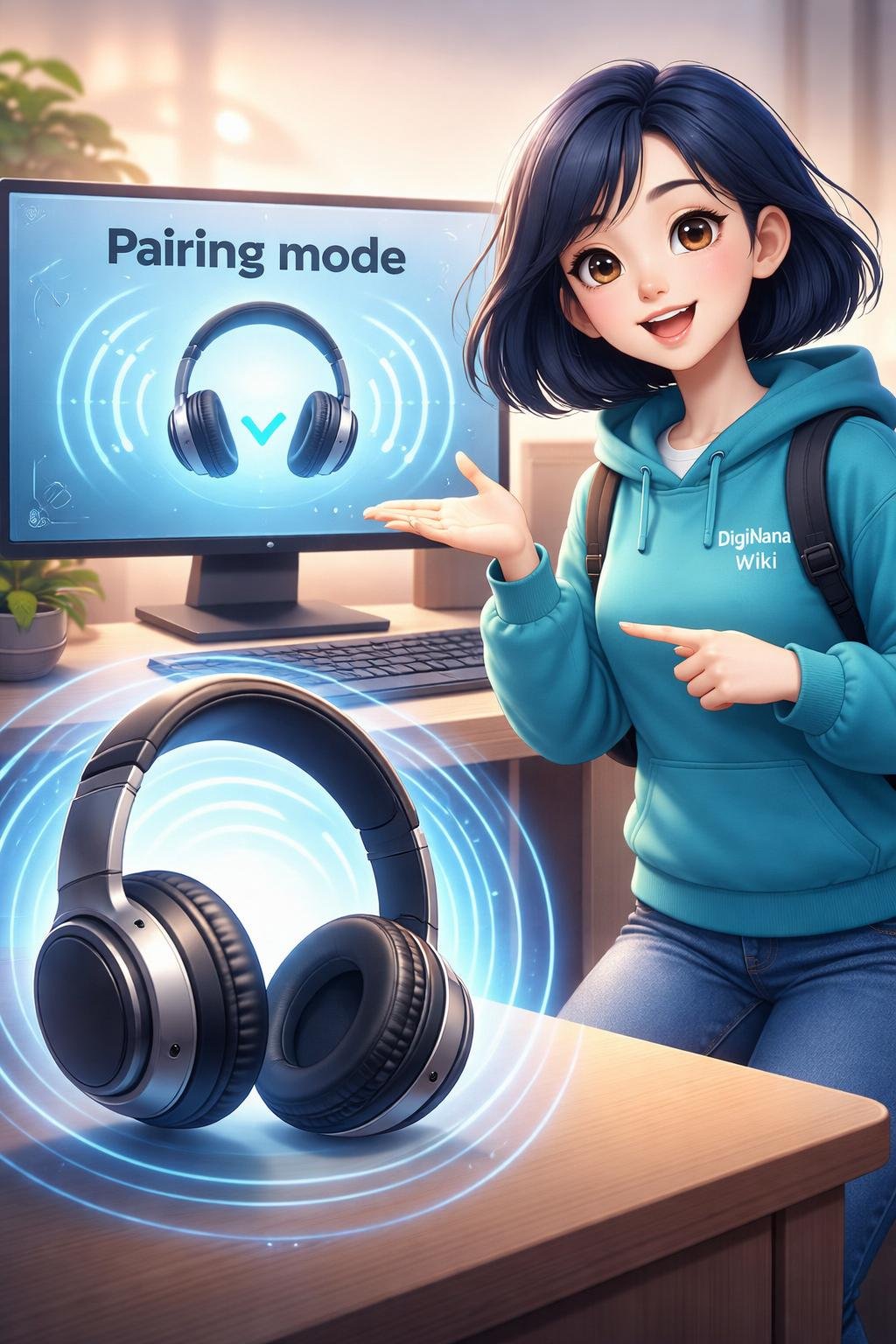
An accessory can be powered on without being ready for a new pairing. The accessory must be discoverable or in pairing mode before the computer or phone can select it from the available devices.
An accessory can be used before pairing
The documented setup procedures require the accessory to be paired. Pairing identifies the accessory and completes any additional prompts required by the platform.
Paired devices always reconnect under every condition
Microsoft states that paired Windows devices automatically reconnect when Bluetooth is on and they are within range. That statement should not be treated as an unconditional guarantee for every platform or situation.
An Android phone can pair with a Chromebook through Bluetooth
The supplied Chromebook documentation specifically states that Android phones cannot pair with Chromebooks through Bluetooth.
DigiNana Beginner Guide
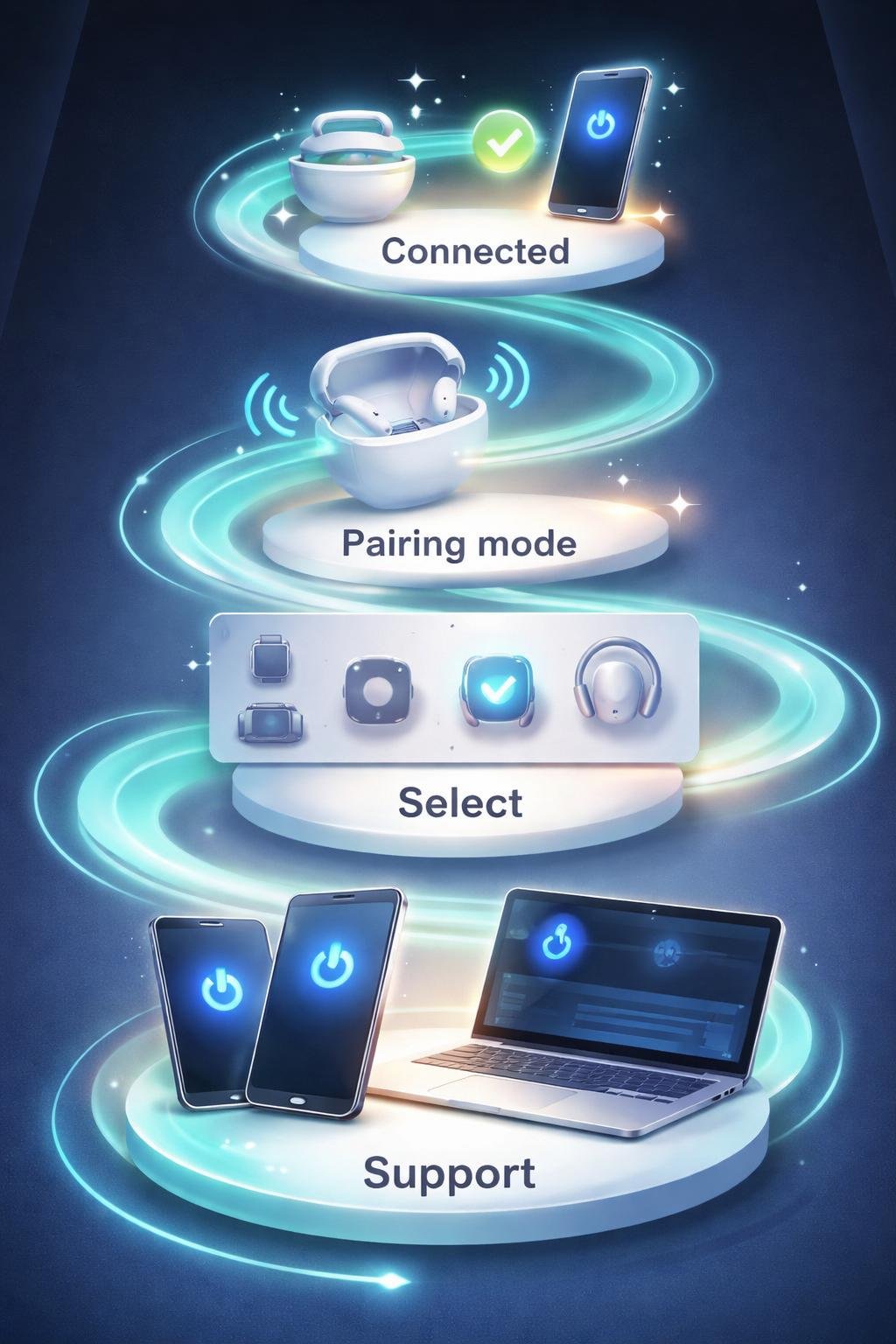
Fictional educational example: DigiNana wants to pair compatible Bluetooth headphones with a Windows computer. This scenario illustrates the documented process and is not a report of a real product test.
- DigiNana confirms that the Windows computer supports Bluetooth and turns Bluetooth on.
- She follows the headphone instructions to place the headphones in discoverable or pairing mode.
- She views the available Bluetooth devices on the computer and selects the correct headphones.
- She follows any additional prompts shown by Windows.
- After pairing, the headphones may reconnect automatically when Windows Bluetooth is on and the devices are within range.
If the headphones do not appear, DigiNana checks that they are enabled and still in pairing mode rather than selecting an unfamiliar device.
Practical Tips
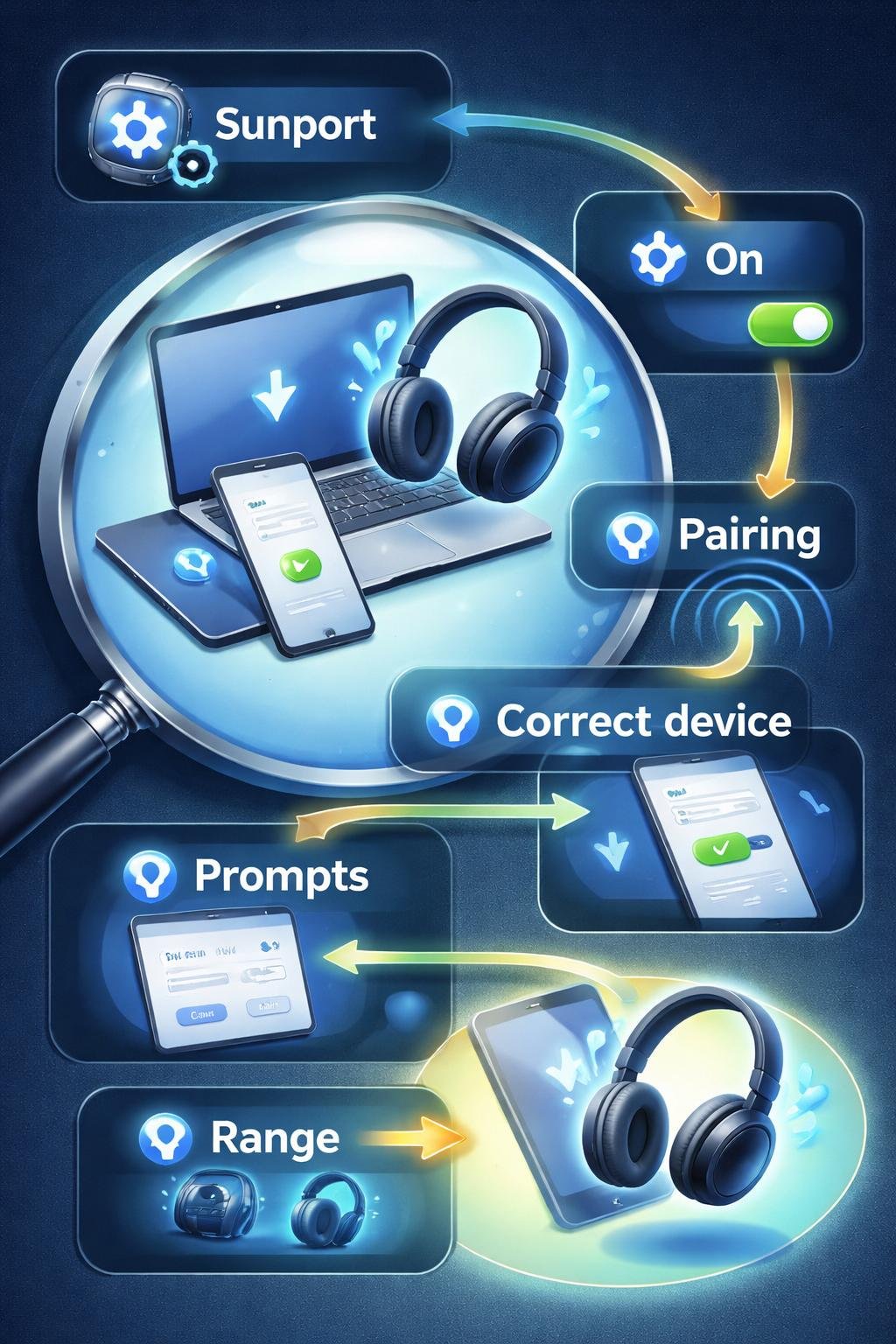
- Check the computer first: Confirm that it supports Bluetooth. For Windows, a USB Bluetooth adapter may add support when required.
- Turn Bluetooth on: The phone or computer needs Bluetooth enabled before it can find or reconnect to an accessory.
- Check the accessory: Confirm that it is powered on and in discoverable or pairing mode.
- Select carefully: Choose the intended accessory from the list of available devices.
- Complete the prompts: Follow any additional instructions displayed by the operating system.
- Check the conditions for Windows reconnection: Bluetooth must be on, and the paired devices must be within range.
Chromebook Bluetooth settings can be used to manage connected and previously paired devices. The documented controls include reconnecting, renaming, disconnecting, and forgetting devices.
If the available controls or labels differ from this guide, consult the current official documentation for the operating system and accessory. Interface details can vary, and the supplied sources do not establish equivalent management controls for every platform.
Safety and Privacy Considerations
Discoverable or pairing mode is relevant because it allows the phone or computer to display the accessory among the available devices. Select the intended accessory and follow the documented prompts rather than assuming that every listed device is the correct one.
Previously paired devices may remain listed in Bluetooth settings. Chromebook documentation confirms that users can reconnect, rename, disconnect, or forget managed devices. The supplied sources do not establish identical controls for Windows, iPhone, Android, or macOS.
The supplied pairing procedures do not establish broader claims about permissions, software downloads, updates, backups, or security guarantees. If an accessory requires additional software or security-sensitive configuration, consult current official platform and accessory documentation before proceeding.
Frequently Asked Questions
Does a computer need Bluetooth hardware?
Yes. The computer must support Bluetooth before it can pair with a Bluetooth accessory.
Can a USB adapter add Bluetooth to a Windows computer?
Microsoft states that a USB Bluetooth adapter can add Bluetooth support when a Windows computer needs it. Compatibility should be checked before choosing an adapter.
Why does the accessory need pairing mode?
Pairing or discoverable mode makes the accessory available for selection during the documented pairing process. Merely powering it on may not be sufficient.
Do paired Windows devices reconnect automatically?
Microsoft states that paired devices automatically reconnect when Bluetooth is on and the devices are within range.
Which accessories can connect through Bluetooth?
Documented examples include headphones, speakers, keyboards, mice, audio headsets, printers, and scanners. Actual support depends on the platform and accessory.
What are Swift Pair and Fast Pair?
Swift Pair applies to supported nearby accessories on Windows when they are in pairing mode. Fast Pair applies to supported accessories on Chromebooks. Neither term establishes support for every accessory.
Can an Android phone pair with a Chromebook through Bluetooth?
No. The supplied Chromebook documentation states that Android phones cannot pair with Chromebooks through Bluetooth.
Are the same steps used on every operating system?
No. Windows and Chromebook have separately documented procedures, while the supplied sources only establish the iPhone pairing requirement and supported uses. Current Android and macOS instructions should be checked in their official documentation.
Final Takeaway
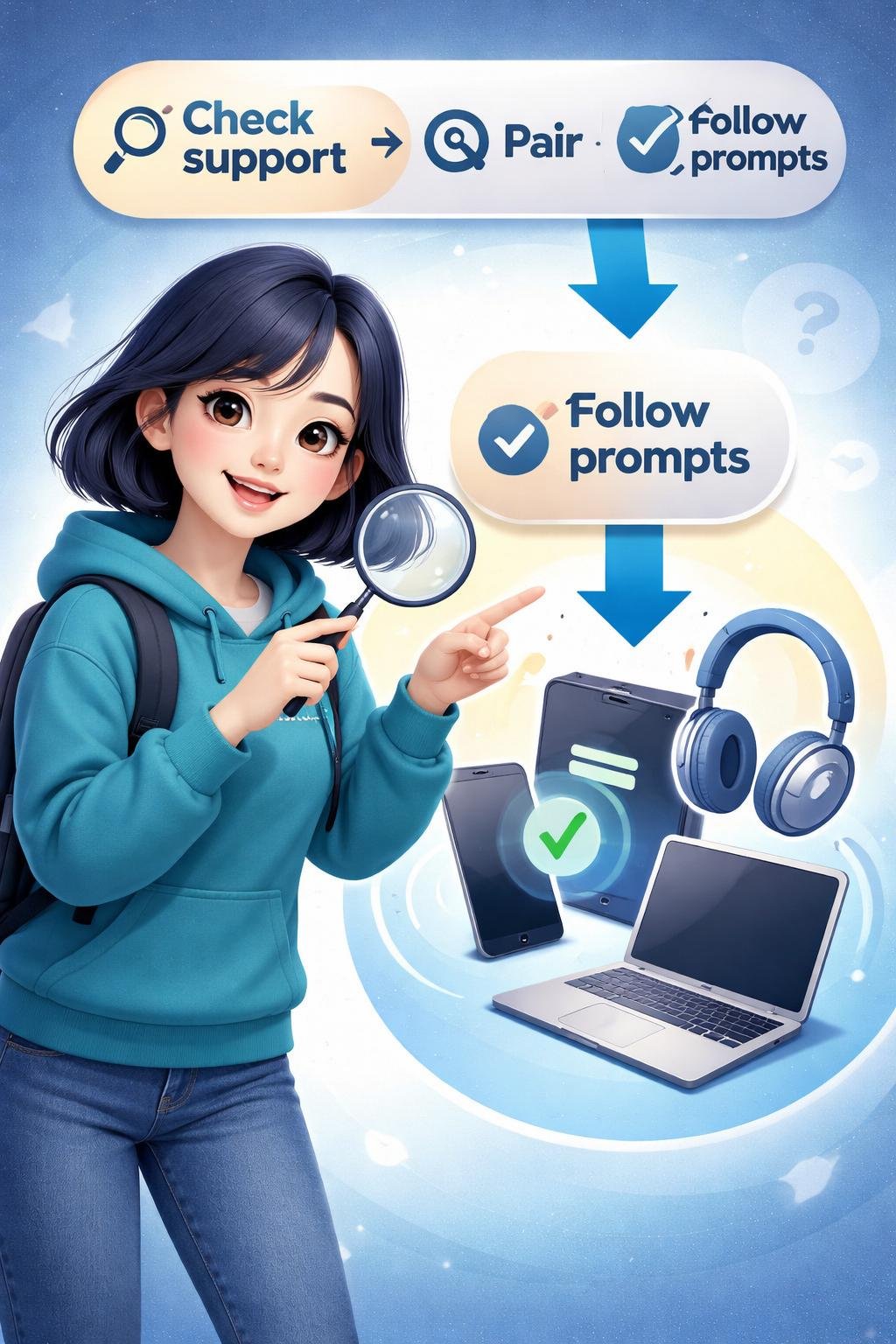
To connect a Bluetooth accessory, verify that the phone or computer supports Bluetooth and that the accessory is compatible. Turn Bluetooth on, place the accessory in discoverable or pairing mode, select it from the available devices, and follow any prompts.
Do not assume that every device uses the same menus or supports the same features. Consult current platform and accessory documentation whenever interface steps, compatibility, pairing features, or restrictions differ.
References
- Pair a Bluetooth device in Windows | Microsoft Support — https://support.microsoft.com/en-us/windows/hardware/bluetooth/pair-a-bluetooth-device-in-windows
- Connect Chromebook to Bluetooth devices – Chromebook Help — https://support.google.com/chromebook/answer/2587653?hl=en
- Connect iPhone to Bluetooth accessories – Apple Support (CA) — https://support.apple.com/en-ca/guide/iphone/iph3c50f191/ios
- Connect iPhone to Bluetooth accessories – Apple Support — https://support.apple.com/guide/iphone/connect-bluetooth-accessories-iph3c50f191/27/ios/27
These official support sources provide the evidence used for the platform-specific guidance in this article.
Image Credits
The five DigiNana Wiki visuals accompanying this article are original educational illustrations created with AI assistance. They are conceptual illustrations and must not be interpreted as verified photographs, exact software interfaces, actual device specifications, or guaranteed technical configurations.
Disclaimer
Technical information, software interfaces, product features, security conditions, compatibility, and service availability can change. Before relying on interface steps or other important technical details, check the current official documentation for the operating system, computer or phone, and Bluetooth accessory.