Introduction: The Software That Makes a Device Usable
An operating system is the foundational software that makes a computer, smartphone, tablet, or similar digital device usable. It coordinates the device’s physical parts, provides an environment for applications, manages files and settings, and gives the user ways to interact with the system.
Understanding operating systems can make everyday tasks less confusing. It helps you identify compatible software, understand why a connected device may need a driver, install updates more safely, and approach troubleshooting without changing unrelated settings.
What Is an Operating System?
An operating system, often shortened to OS, is the main collection of software that coordinates hardware, applications, files, settings, and user interaction. Windows, macOS, Linux, Android, and iOS are operating-system families, although their designs, interfaces, supported devices, and available features differ.
The operating system is not the same as the physical device. Components such as the processor, memory, storage drive, screen, keyboard, and camera are hardware. The operating system controls access to that hardware and presents its capabilities to applications and users.
An operating system is also different from an application. A web browser, document editor, media player, or messaging tool performs a particular set of user tasks. It normally depends on services supplied by a compatible operating system.
Why an Operating System Matters
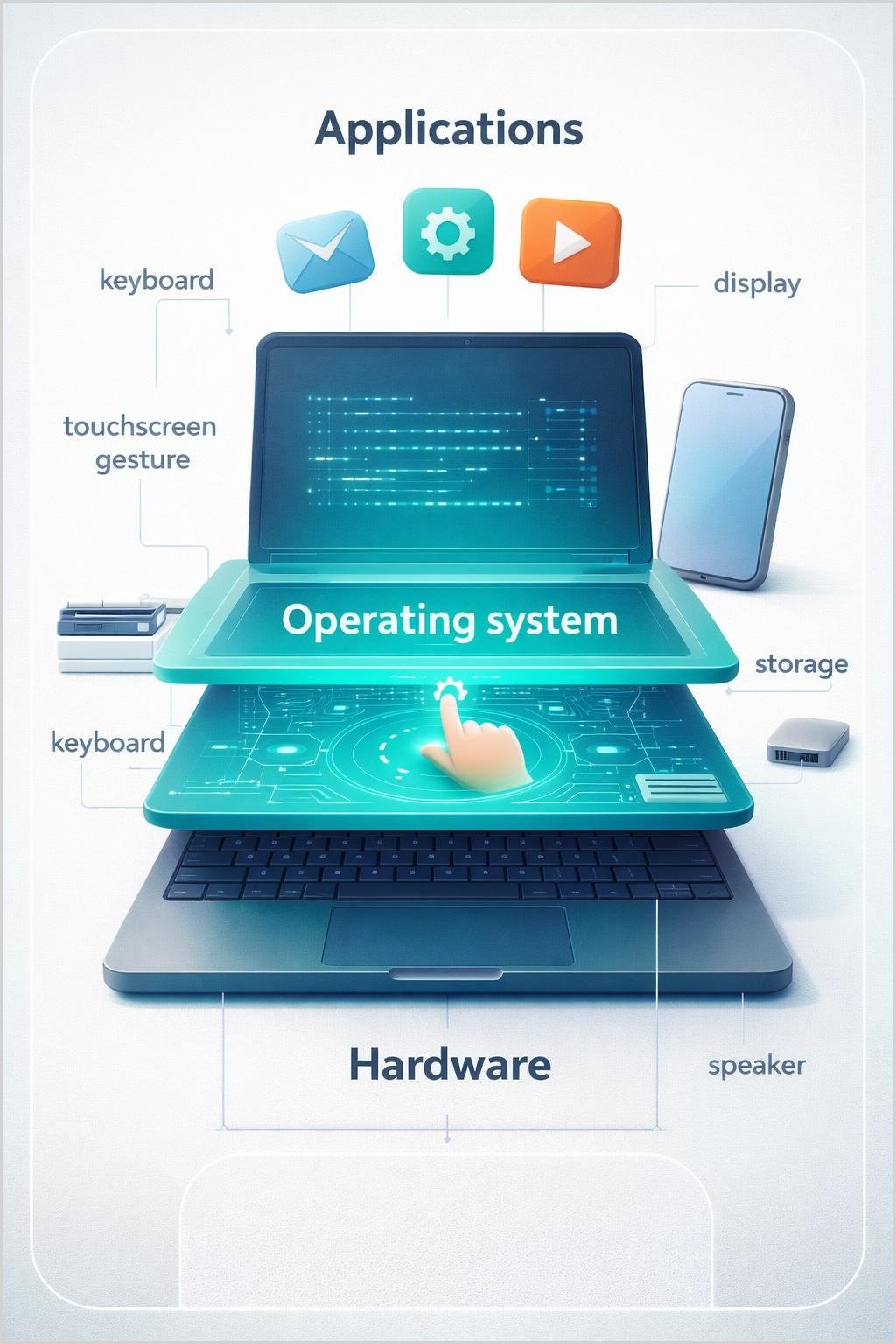
Without an operating system or another suitable software environment, users would have no standard way to start applications, organize files, adjust ordinary settings, or interact with most hardware. The operating system turns low-level hardware capabilities into a more consistent working environment.
It accepts input from devices such as keyboards, pointing devices, touchscreens, microphones, and controllers when those devices are supported. It then presents output through components such as displays, speakers, printers, or storage devices.
The operating system also supports routine administration. Depending on the system and the user’s permissions, this can include managing accounts, networks, storage, applications, updates, accessibility options, privacy controls, and connected devices.
How an Operating System Works
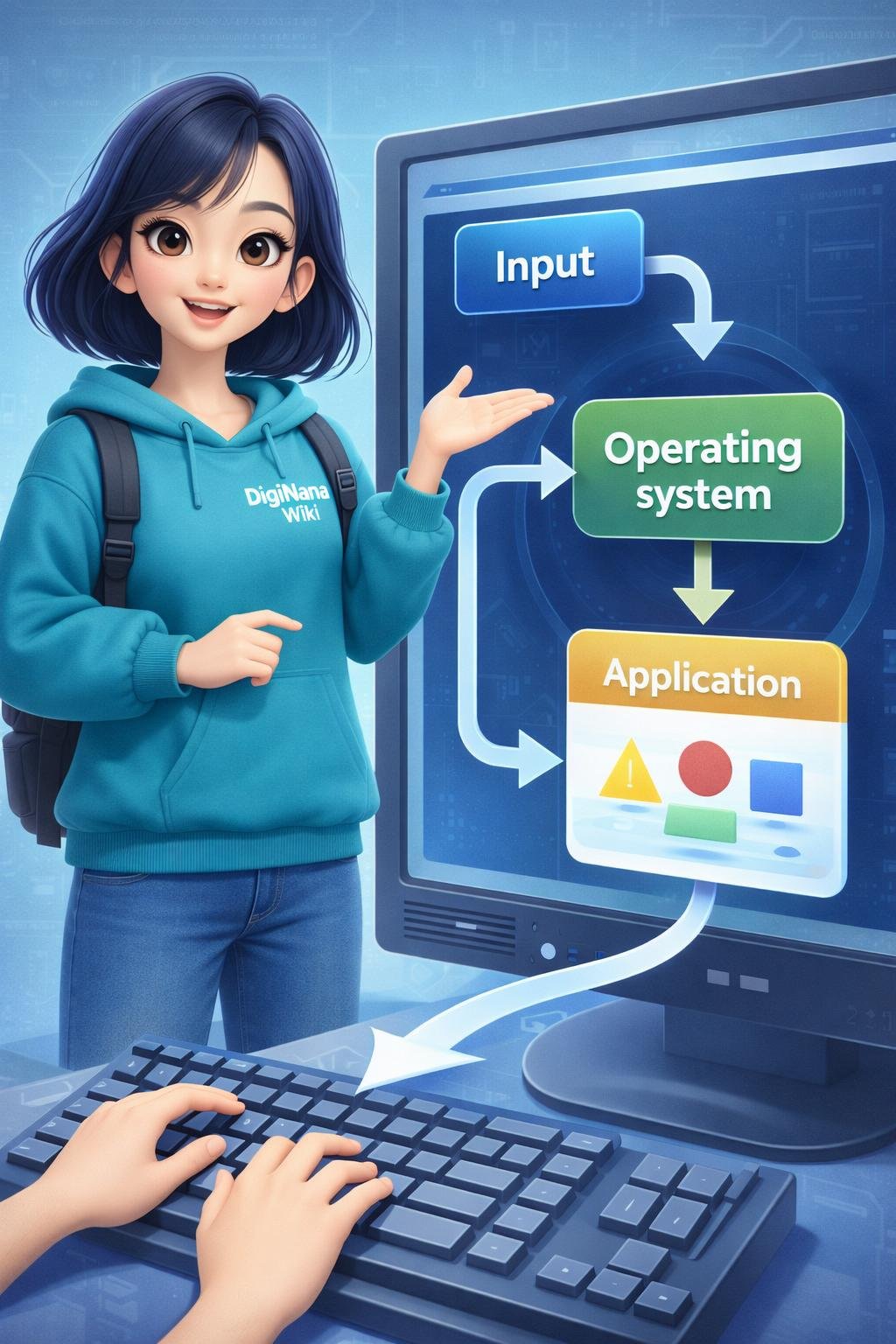
The operating system sits between applications and hardware. Instead of every application controlling a processor, storage device, or display independently, applications request services through interfaces provided by the operating system.
For example, when an application saves a document, it asks the operating system to write data to a selected location. The operating system works with its file-management components, storage driver, and hardware to complete the request. It can also enforce permissions that determine whether the application or user may access that location.
The operating system schedules work for the processor, allocates memory, handles input and output, and coordinates competing requests. If several applications are open, the system decides when each one can use processing time and other resources. The exact scheduling and resource-management methods depend on the operating system.
Windows, macOS, Linux, Android, and iOS use different implementations and user interfaces. Procedures, permissions, available settings, and application formats can also change between versions and devices. Instructions written for one system or version should not automatically be applied to another.
Key Operating System Components
| Component | What it does |
|---|---|
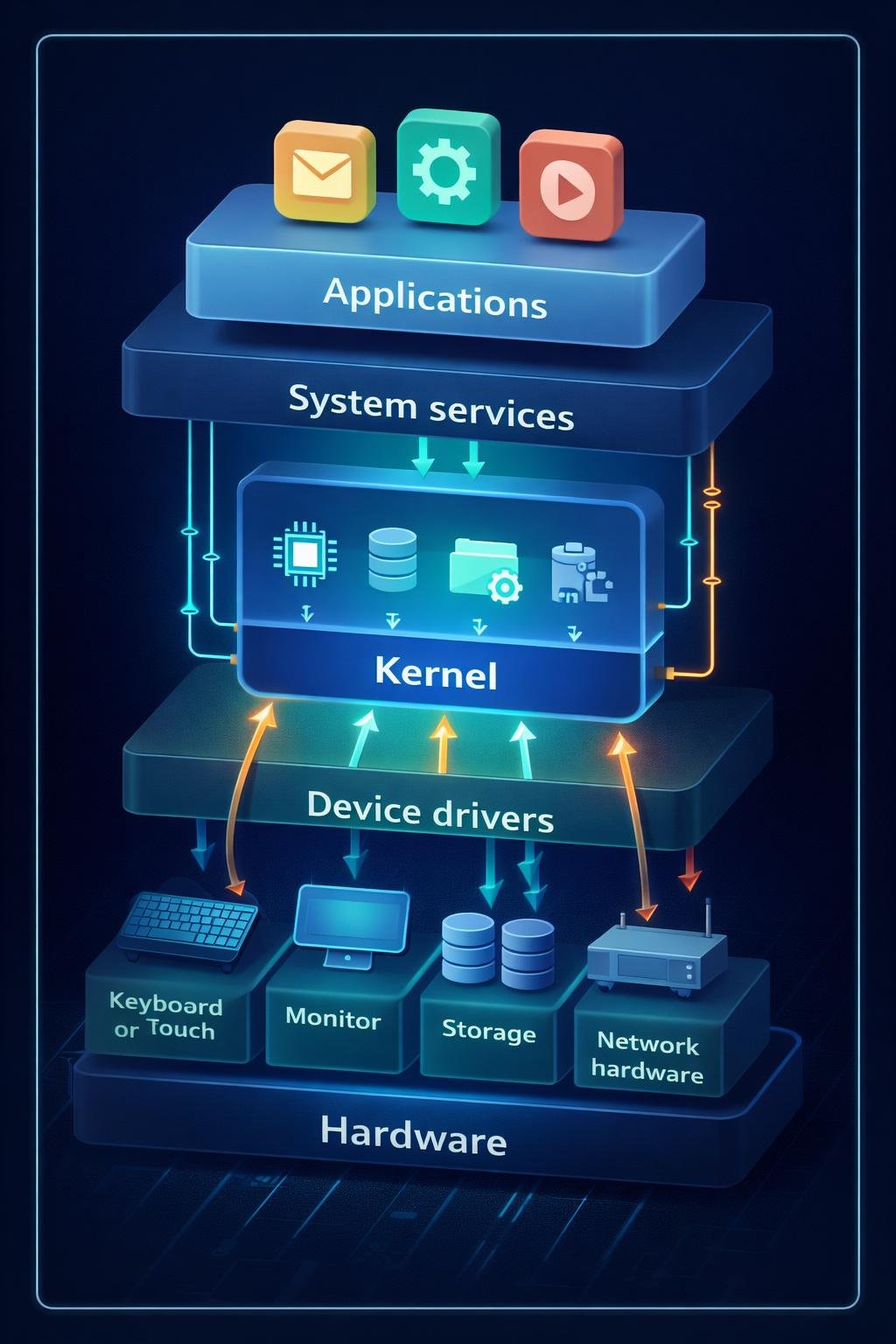
| Kernel | Manages core operations such as processor use, memory, hardware communication, and access to system resources. |
| Device drivers | Help the operating system communicate with particular hardware or classes of hardware. |
| User interface | Provides graphical or command-based ways for people to interact with the system. |
| System services | Perform background functions needed by the operating system and applications. |
| Userspace tools | Provide administration, configuration, monitoring, and other functions outside the kernel. |
| Application interfaces | Give compatible software defined ways to request operating-system services. |
| File management | Organizes data into files, folders, storage locations, and associated permissions. |
| Settings | Store and expose configurable choices for users, applications, devices, and system behavior. |
| Firmware interfaces | Support communication with low-level software built into a device or hardware component. |
The kernel is the central technical component, but it is not the entire operating system. Linux kernel documentation covers core interfaces, drivers, subsystems, locking, userspace application programming interfaces, system administration, firmware expectations, and architecture-specific support. This illustrates how kernel operation depends on many connected subsystems and hardware interfaces.
Drivers are another important dependency. Microsoft’s Windows driver documentation covers driver and device installation, kernel-mode architecture, driver frameworks, testing, verification, signing, deployment, and distribution. These areas matter because a driver must fit the operating system’s technical and security requirements as well as the relevant hardware.
How Operating Systems Manage Devices
When hardware is connected or built into a device, the operating system must identify it and use an appropriate method to communicate with it. A device driver translates operating-system requests into operations the hardware can understand and reports device information back to the system.
Hardware can provide input, output, storage, networking, or several functions at once. Common categories include keyboards, touchscreens, pointing devices, cameras, microphones, displays, speakers, printers, storage devices, and network adapters. Support is not universal: it depends on the hardware, operating system, driver, architecture, version, and sometimes firmware.
Verified Microsoft documentation provides Windows as an example of a broad device platform. It describes support across several device types and input methods, including touch, pen, mouse, keyboard, controller, and gesture input. It also describes Universal Windows Drivers across embedded systems, tablets, and desktop PCs. These are Windows platform examples, not a guarantee that every Windows device supports every input method or driver.
Windows documentation also states that Windows 10 and Windows 11 share a common operating-system core across multiple device categories. Sharing a core can help provide common technical foundations, but it does not make all devices, drivers, applications, or features interchangeable.
How Operating Systems Manage Applications
An operating system provides services and application interfaces that software can use. These may include ways to display content, read input, connect to networks, store files, play sound, use memory, or communicate with supported hardware.
When a user starts an application, the operating system loads the required program data, assigns resources, and creates a controlled environment in which the application can run. It coordinates processor time and memory while also applying account permissions and other system rules. When the program closes, the operating system reclaims resources that are no longer needed.
Software installation may involve copying files, registering components, creating settings, checking permissions, or obtaining packages through a managed software source. The exact method depends on the operating system, version, device type, administrator policies, and application.
An application designed for one operating system does not necessarily run on another. Even software with the same product name may use different packages, capabilities, or requirements on Windows, macOS, Linux, Android, and iOS. Compatibility should be checked against current official documentation before installation.
Everyday Examples of an Operating System at Work
Illustrative example: Opening an application. A user selects an application icon. The operating system locates the program, checks relevant permissions, allocates resources, and presents the application’s interface. The exact sequence and visible behavior vary by system.
Illustrative example: Typing on a keyboard. A supported keyboard sends input to the device. A driver and the operating system process that input before passing appropriate characters or commands to the active application.
Illustrative example: Using a touchscreen. The operating system interprets supported touch input and directs it to the appropriate interface or application. Hardware capabilities and gesture behavior depend on the device and software.
Illustrative example: Connecting a peripheral. The operating system attempts to identify the peripheral and find a suitable driver. The device may work immediately, require approved driver software, provide limited functionality, or remain unsupported.
Illustrative example: Saving a file. The application asks the operating system to store data at a chosen location. File-management and storage components perform the operation if the location is available and the required permissions are present.
Illustrative example: Switching input methods. On a device that supports more than one input method, the operating system may coordinate movement between keyboard, touch, pen, or controller input. Available combinations are device- and version-dependent.
Benefits, Limitations, and Trade-Offs
A central benefit of an operating system is coordinated management. Applications can use common services instead of each program creating its own method for controlling storage, displays, networks, and input devices. Users also gain a consistent place for many files, accounts, settings, and administrative tasks.
This coordination has limits. An operating system depends on compatible hardware, suitable drivers, adequate system resources, and functioning firmware. A device may be technically connected but still unusable if the required driver is missing, unsupported, damaged, or incompatible.
Software compatibility is another limitation. Applications may require a particular operating-system family, processor architecture, permission model, or system capability. Newer software may not support an older system, while older programs may not work correctly after major system changes.
Different operating systems also make different trade-offs in interface design, software distribution, hardware support, administration, customization, and security controls. Practical support may depend on a device vendor, software developer, operating-system provider, or open-source community. No single choice guarantees compatibility or performance for every use.
Common Operating System Misunderstandings
- The operating system is not the device. The device is physical hardware, while the operating system is software running on it.
- The operating system is not an application. Applications perform particular tasks and normally rely on the operating system.
- The operating system is not only its interface. Icons, windows, menus, and touch controls are visible parts of a larger system that includes background services, drivers, file management, and security controls.
- The kernel is not the complete operating system. It is a core component used with drivers, services, administration tools, interfaces, and other software.
- A driver is not the operating system. A driver is a specialized component that helps the system work with particular hardware.
- A shared operating-system family does not guarantee interchangeability. Devices can use related system software while supporting different applications, drivers, interfaces, and features.
Keeping these distinctions clear makes compatibility information and troubleshooting instructions easier to understand.
DigiNana Beginner Guide
Fictional educational example: DigiNana connects a supported external device to a computer and then opens an application that can use it. This scenario is an illustration, not a real product test or an exact interface walkthrough.
DigiNana explains that the operating system first needs a way to identify and communicate with the connected hardware. It may use an existing driver, obtain an approved driver through the system’s supported process, or report that no suitable support is available.
When the application opens, it does not usually control the hardware entirely by itself. It requests services through the operating system. The operating system coordinates the application, driver, memory, processor time, permissions, and hardware communication.
If the device does not work, DigiNana checks one layer at a time: the physical connection, device power, operating-system recognition, driver status, application compatibility, and permissions. This layered approach is safer than changing many unrelated settings at once.
Practical Tips
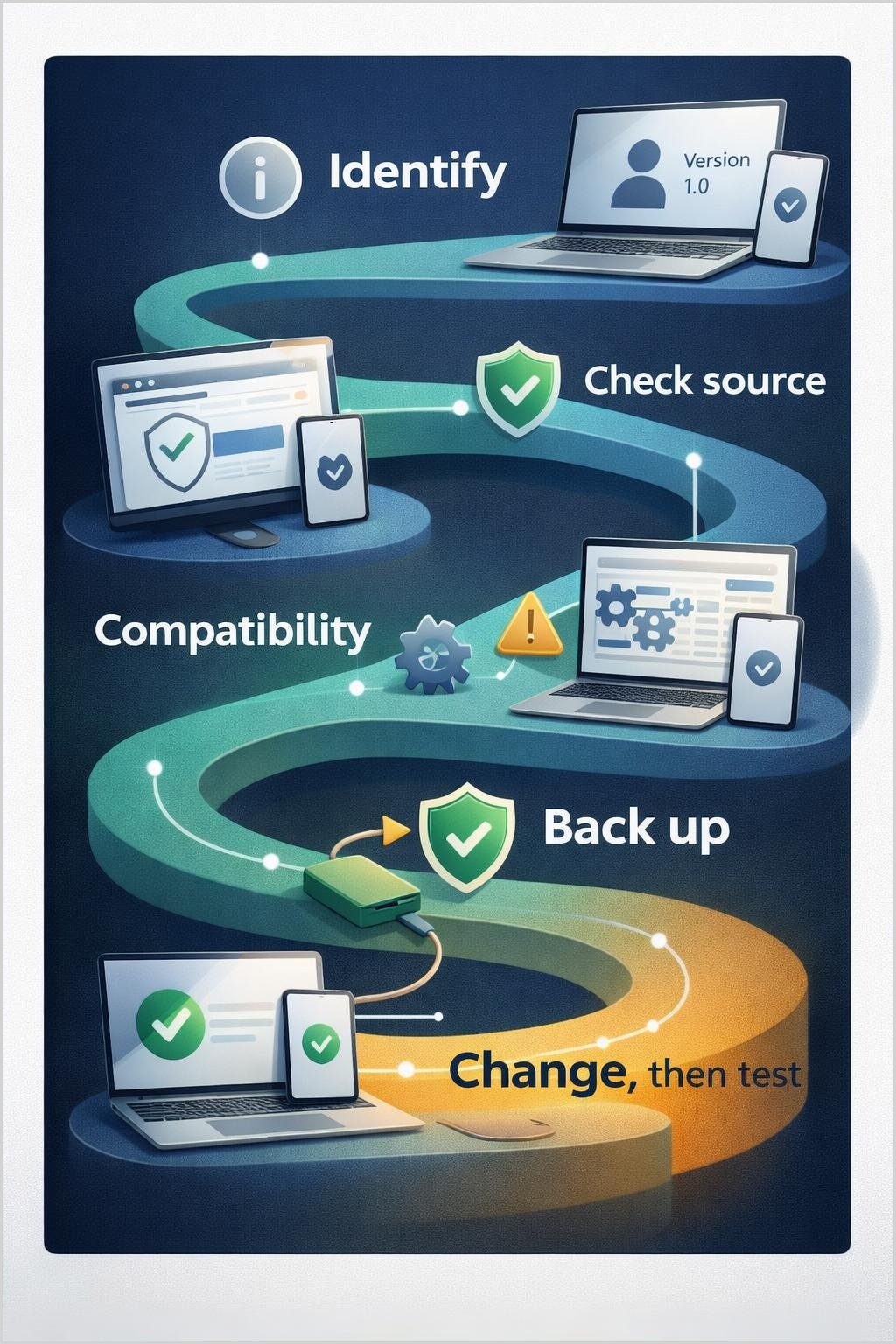
- Identify the operating system accurately. Check the system information provided by the device rather than guessing from its appearance. Record the edition, version, and hardware architecture when that information is relevant.
- Use current official documentation. Menu names and procedures can differ between Windows, macOS, Linux distributions, Android, iOS, system versions, and device manufacturers.
- Review compatibility before installation. Confirm that software or a driver supports the operating system, version, architecture, and hardware involved.
- Prefer official download sources. Obtain operating-system updates, applications, and drivers from the operating-system provider, device manufacturer, application developer, or another officially documented distribution method.
- Install updates carefully. Keep the device powered appropriately, follow official instructions, and avoid interrupting firmware or system operations unless the documentation directs you to do so.
- Troubleshoot one change at a time. Record what you changed and test the result before moving to another step. This makes it easier to identify the cause and reverse an unsuccessful change.
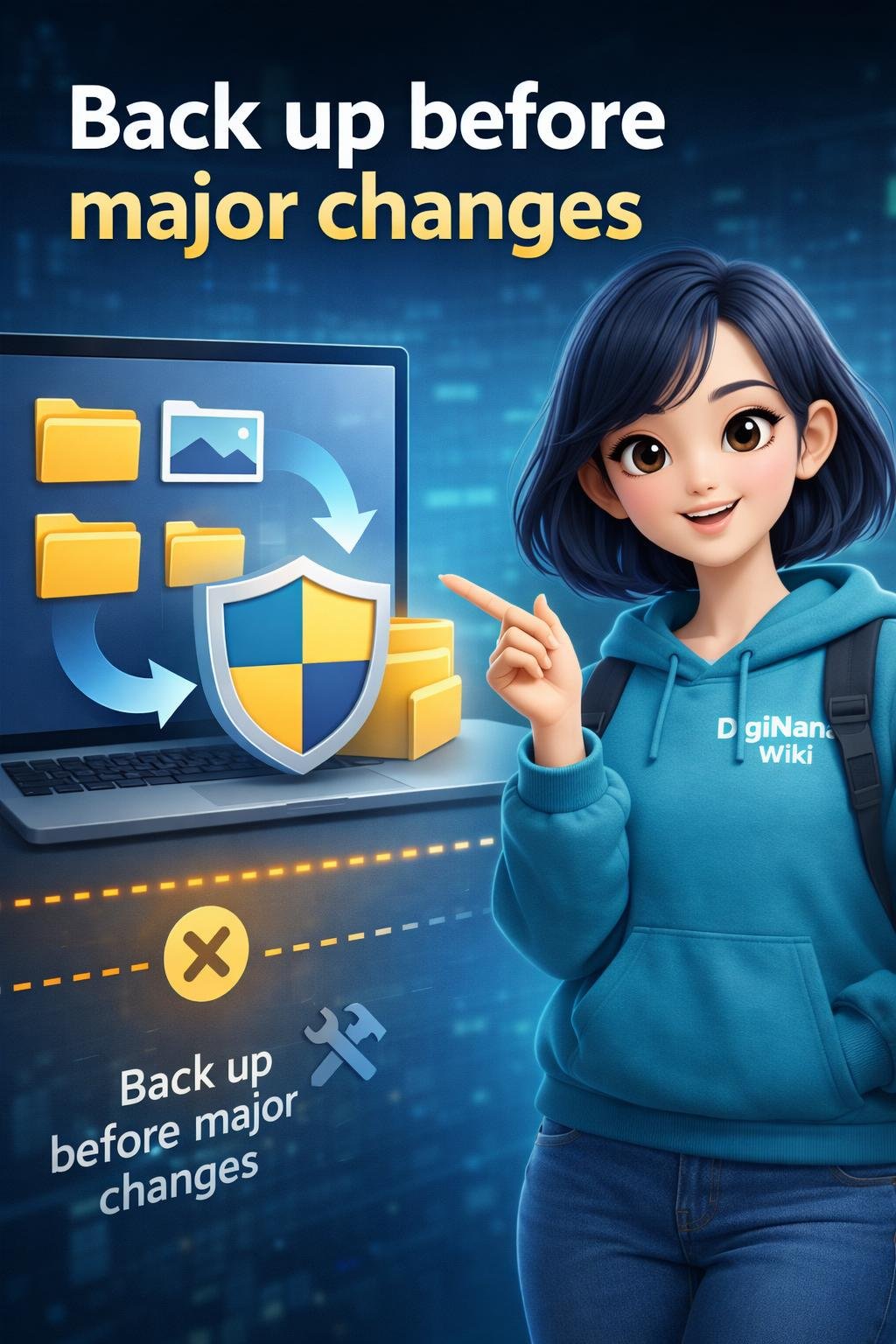
- Back up important data before destructive work. Resets, operating-system reinstalls, storage partition changes, driver removal, recovery procedures, and similar operations can make files or settings inaccessible or erase them.
When an action could affect stored data, confirm that the backup is accessible before proceeding.
Software Safety, Privacy, Updates, and Backups
Software and drivers obtained from unofficial or misleading sources can create security, stability, or privacy risks. Prefer the official source named by the operating-system provider, hardware manufacturer, or software developer, and verify that the download matches the intended system.
Review permission requests before approving them. An application may request access to files, location data, a microphone, a camera, contacts, or connected devices. Whether a request is appropriate depends on the application’s purpose, but unnecessary access should not be granted casually.
Use drivers supported for the relevant hardware and operating system. Driver installation can involve privileged access to core parts of the system. Windows driver documentation, for example, includes signing, testing, verification, installation, and deployment as parts of its driver ecosystem.
Security and maintenance updates can correct problems or change system behavior, but update controls and support arrangements differ among operating systems, versions, devices, organizations, and administrators. Check current official guidance when an update affects critical software or specialized hardware.
Maintain backups that are separate from the main working copy of important files. Recovery planning should also consider how accounts, applications, settings, and required installation information would be restored. A backup is most useful when its contents and recovery method have been checked safely.
Frequently Asked Questions
Can a device work without an operating system?
Some specialized hardware can run firmware or dedicated software without a general-purpose operating system. However, ordinary computers and smartphones need an operating system or a comparable system environment to provide the applications, interfaces, file handling, and device management expected by users.
How is an operating system different from an application?
The operating system manages shared hardware and system resources and provides services to software. An application uses those services to perform particular tasks such as browsing, writing, communicating, or editing media.
Is the kernel the same as the operating system?
No. The kernel manages core operations, but a complete operating system also includes or works with drivers, system services, userspace tools, interfaces, settings, and other components.
Why are device drivers needed?
Drivers provide a defined way for the operating system to communicate with supported hardware. A missing or incompatible driver can prevent a device from working or can limit its available functions.
Can every operating system run the same software?
No. Applications may depend on a particular operating-system family, version, processor architecture, application interface, permission model, or hardware capability. Separate compatible editions may be required for different systems.
Why do interfaces and features differ on devices using the same operating-system family?
Differences can result from system versions, hardware capabilities, device categories, manufacturer changes, administrator policies, regional or service availability, and installed software. A shared family or core does not guarantee an identical interface or feature set.
Final Takeaway
An operating system coordinates hardware, drivers, applications, files, interfaces, permissions, and system resources. It provides the working environment through which users and applications interact with a device.
Safe use depends on understanding compatibility and version differences. Check current official documentation, obtain software and drivers from official sources, review permissions, apply updates carefully, and create a usable backup before resets, reinstalls, storage changes, driver removal, or other potentially destructive operations.
References
- Get started | Microsoft Learn — https://learn.microsoft.com/en-us/windows-hardware/get-started/
- The Linux Kernel documentation — The Linux Kernel documentation — https://docs.kernel.org/
- Windows Hardware Developer Documentation – Windows drivers | Microsoft Learn — https://learn.microsoft.com/en-us/windows-hardware/drivers/
These verified sources support the operating-system, kernel, hardware-interface, and device-driver explanations used in this article.
Image Credits
The five DigiNana Wiki visuals associated with this article are original educational illustrations created with AI assistance. They are conceptual teaching materials and must not be interpreted as verified photographs, exact software interfaces, actual device specifications, or guaranteed technical configurations.
Disclaimer
This article provides general educational information. Technical information, software interfaces, product features, security conditions, compatibility, permissions, and service availability can change by operating system, version, device, administrator, provider, and region. Consult current official documentation before making important installation, configuration, security, recovery, driver, or compatibility decisions.