Introduction to Cloud Storage
Cloud storage is a way to keep digital files on remote computer systems operated by a service provider instead of relying only on storage inside a computer, phone, tablet, or external drive. People commonly use it for documents, photos, application data, shared files, and archives.
Files are usually transferred through an internet connection and accessed through a website, application, synchronized folder, or another supported tool. Understanding how this process works can help you make better decisions about access, sharing, privacy, synchronization, and backup.
What Is Cloud Storage?

Cloud storage is the storage of digital data on off-site infrastructure managed by a provider. Although the word “cloud” sounds abstract, the data ultimately resides on physical storage systems in provider-operated data centers.
Local storage means data is stored directly on a device or attached storage medium, such as a computer drive, phone, memory card, or external drive. Remote storage means the data is stored on systems reached through a network, usually the internet.
Cloud storage can use several storage models. Object storage keeps data as objects with identifiers and descriptive information called metadata. File storage organizes data in a folder-and-file hierarchy. Block storage divides data into blocks that software can use as a storage volume. These models serve different purposes, and an everyday cloud application may hide most of their technical details from the user.
Why Cloud Storage Matters

Cloud storage can make files available from more than one supported device. For example, a document uploaded from a computer may later be opened through a compatible application or browser on a phone.
It can also simplify file sharing. Instead of sending a separate copy to each person, a user may be able to grant selected people access or create a sharing link. The available permissions and controls depend on the service.
Providers can offer expandable capacity without requiring users to install another physical drive. However, storage limits, transfer limits, account plans, and costs vary.
Cloud storage can be one part of a backup strategy, but storing or synchronizing a file in the cloud does not automatically create a complete backup. Deletion, corruption, account problems, synchronization changes, or limited recovery periods can affect both local and remote copies. Important data should have independent, verified copies.
How Cloud Storage Works
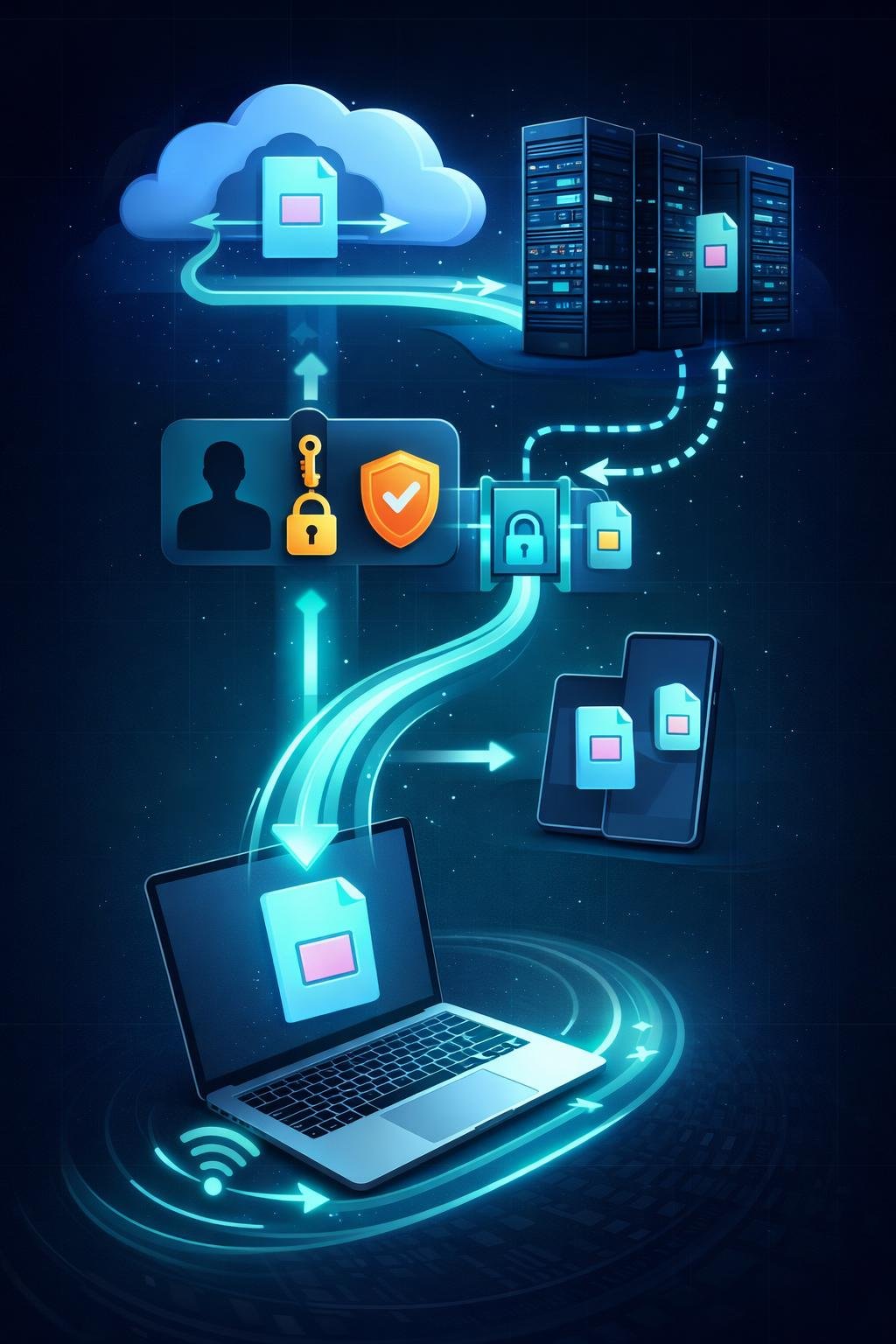
- Account access: The user signs in through a website, application, or other supported tool. Authentication checks the user’s identity.
- Upload: The device sends data through a network connection to the provider’s service.
- Storage: The provider’s virtualized services place the data on physical server and storage infrastructure. The exact architecture varies by provider.
- Identification: The service records information needed to locate and manage the data. This may include an object key, filename, owner, size, content type, timestamps, or other metadata.
- Access control: Permissions determine which accounts, applications, or public links can reach the data.
- Retrieval: When requested, the service locates the data and sends it to an authorized device or application.
- Synchronization: If synchronization is enabled, software may compare local and remote changes and update one or both locations according to its rules.
Providers may make additional copies of data across storage systems or locations to improve availability and redundancy. Replication arrangements, recovery behavior, durability design, and geographic placement differ among services, so they should not be assumed without consulting current provider documentation.
Key Components and Storage Models
Components and dependencies
- User device: A computer, smartphone, tablet, server, or other supported device that sends or retrieves data.
- Network connection: Internet or private network access used for transfers and account communication.
- Access tool: A web portal, desktop application, mobile application, command-line tool, or application programming interface.
- Account and authentication: The identity and sign-in process used to control access.
- Provider infrastructure: Data centers containing physical servers, storage equipment, networks, and supporting software.
- Metadata: Information that describes or identifies stored data.
- Access controls: Permissions, policies, and sharing settings that determine who or what can use the data.
- Storage location: The provider-selected or customer-selected region or facility arrangement in which data is stored, where such choices are offered.
- Storage class: A provider-defined option intended for a particular access pattern, such as frequently used or archival data. Availability, retrieval rules, and costs vary.
Main storage models
| Model | Basic organization | Typical purpose |
|---|---|---|
| Object storage | Objects are stored in containers commonly called buckets. Each object has data, metadata, and a unique key within its bucket. | Files, media, backups, archives, and application data. |
| File storage | Files are organized in hierarchical directories or folders. | Shared folders and applications that expect familiar file paths. |
| Block storage | Data is divided into addressable blocks presented to a system as storage. | Virtual machine disks, databases, and other workloads requiring volume-style storage. |
Provider terminology is not universal. For example, a folder displayed by one object-storage interface may be a visual organization based on object names, while another service may offer a true hierarchical namespace. Users should check the documentation for the service they use.
Everyday Examples of Cloud Storage
Illustrative example: accessing photos. A person uploads photos from a phone and later views them on a computer after signing in to the same account. Whether originals remain on the phone depends on the application’s storage and synchronization settings.
Illustrative example: sharing a document. A student stores a document remotely and gives a classmate permission to view it. Editing, commenting, link expiration, and access restrictions are service-specific features rather than universal cloud-storage capabilities.
Illustrative example: application data. An application saves settings or user-created content to cloud storage so that the data can be retrieved after an authorized sign-in. The type of data saved and its recovery behavior depend on the application.
Illustrative example: archiving files. An organization places infrequently accessed records in an archival storage class. Retrieval time, minimum storage periods, and charges may differ from frequently accessed storage.
Benefits, Limitations, and Trade-Offs
| Potential benefit | Related limitation or trade-off |
|---|---|
| Remote access from supported devices. | Full access often depends on connectivity, account access, and compatible software. |
| Provider-managed infrastructure. | The user depends on the provider’s operation, policies, and service availability. |
| Capacity can often be expanded. | Storage, retrieval, or data transfer may involve limits or costs. |
| Sharing and collaboration may be easier. | Incorrect permissions or unrestricted links can expose information. |
| Provider replication may add redundancy. | Redundancy does not protect against every deletion, account, synchronization, or privacy problem. |
Large files may take time to upload or download, especially over slow or unstable connections. Offline access may be possible for files previously saved on a device, but its behavior varies by application.
Users should also consider privacy, data location, account dependence, supported file sizes, operating-system compatibility, and provider-specific restrictions. Cloud storage offers flexibility, but it does not remove the need to manage files carefully.
Common Cloud Storage Misunderstandings
“Cloud data exists only in an abstract space.”
Cloud services use real physical servers, storage devices, networking equipment, and data centers. The “cloud” describes a service model in which users access provider-managed computing resources remotely.
“Synchronization is always the same as backup.”
Synchronization is designed to keep locations aligned. A deletion or unwanted edit may therefore be copied to other synchronized locations. A backup should provide a separate recoverable copy and should be tested according to the user’s needs.
“Deleted cloud files are always recoverable.”
Some services provide a recycle bin, retained versions, or another recovery feature, but availability and retention rules differ. Permanent deletion, expired retention periods, or account removal may prevent recovery.
“Cloud storage is automatically public or completely private.”
Access depends on permissions, policies, links, account settings, and provider configuration. A private file can be exposed through incorrect sharing, while some object-storage systems can intentionally be configured for public access.
“Provider redundancy removes the need for another copy.”
Provider redundancy can help maintain service availability, but it is not a substitute for an independent backup under the user’s control. Redundant systems may faithfully reproduce an authorized deletion or damaged synchronized file.
DigiNana Beginner Guide
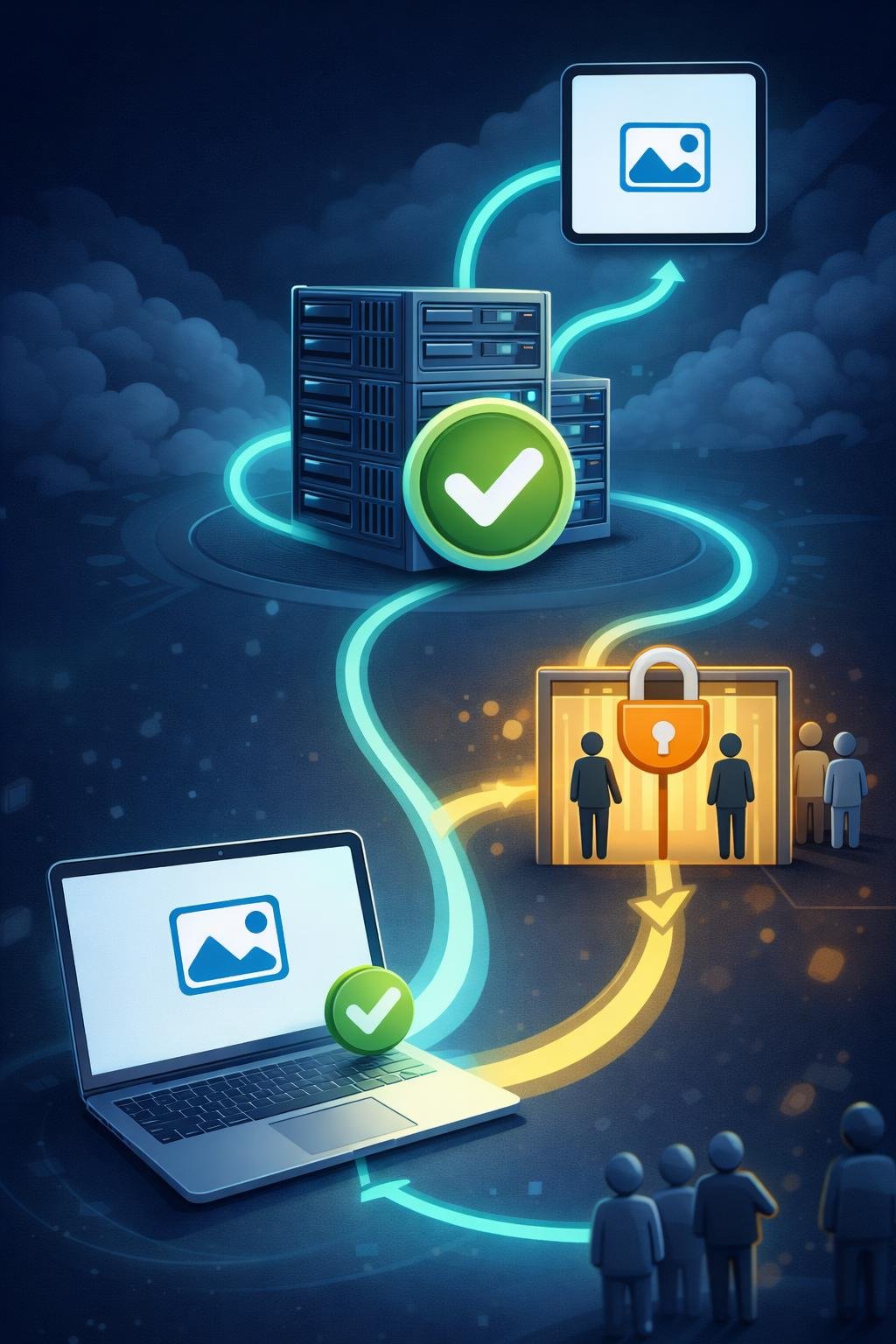
Hypothetical educational example: DigiNana wants to learn how cloud storage works without using sensitive information. She creates a small practice document containing no private details and signs in to a cloud-storage service through its official application or website.
- DigiNana uses the service’s upload function to select the practice document.
- She waits for the transfer to finish and checks that the document appears in her account.
- She opens the account on another supported device and confirms that the document is available.
- She reviews the document’s sharing permissions and keeps access restricted because she does not need to share it.
- If she performs a sharing test, she uses a non-sensitive file and checks exactly who can open the link.
This story illustrates a typical workflow, not a test of a particular product. Button names, menu locations, synchronization behavior, and supported devices differ among services, applications, operating systems, and software versions.
Practical Tips

- Use clear folder names or naming conventions so that files are easier to locate.
- Check the account’s current storage usage and limits before transferring a large collection.
- Confirm that an upload has completed before closing an application or disconnecting from the network.
- Test an important file by opening it rather than assuming that its visible filename proves the content uploaded correctly.
- Review whether an application is uploading, downloading, mirroring, or keeping selected files available offline.
- Check sharing permissions regularly and remove access that is no longer needed.
- Install desktop and mobile applications only from the provider’s official website or the device’s trusted application store.
- Keep an independent copy of important files on another suitable storage system.
Data-loss warning: Verify your backups, recovery options, and synchronization status before deleting local or cloud files, disconnecting a synchronized folder, resetting an application, or closing an account. A change made in one location may be copied elsewhere, and recovery may not be available.
Cloud Storage Safety, Security, and Privacy
Protect the cloud account with a strong, unique password. Enable multifactor authentication when the service offers it. Multifactor authentication requires an additional sign-in factor beyond the password and can reduce the risk caused by a stolen password.
Review which devices and applications can access the account. Remove access for devices you no longer control and avoid granting an application more permissions than it needs. Keep operating systems, browsers, and cloud applications updated through trusted sources.
Sharing links require care. A link that works for anyone who receives it may be forwarded beyond the intended audience. Where available, use named-recipient access, restricted permissions, expiration controls, or passwords appropriate to the situation.
Encryption can protect data during transfer or while stored, but implementations and key-management arrangements differ. Some services manage the encryption keys, while other configurations may offer customer-managed options. Encryption does not prevent an authorized account, application, or recipient from accessing data according to its permissions.
Consider the sensitivity of information before uploading it. Review current provider documentation about privacy settings, data location, retention, account recovery, and deletion. No online service should be treated as completely secure.
Version history, recycle bins, or recovery tools can help where supported, but they may have limits. Keep separate backups of important data and periodically confirm that those backups can be restored.
Frequently Asked Questions
Does cloud storage require the internet?
An internet or other network connection is generally required to upload new data, retrieve data not already stored locally, and synchronize changes. Some applications offer offline access to selected files, but setup and behavior vary.
Do cloud files remain on my device?
They may. Some applications keep full local copies, some download files only when opened, and others remove local copies to save space. Check the application’s current offline, download, and synchronization settings.
What is the difference between cloud storage and backup?
Cloud storage provides remote space for saving and accessing data. Backup is a process for maintaining recoverable copies after loss, damage, or unwanted change. A cloud service can support backup, but ordinary uploading or synchronization does not necessarily provide a complete backup system.
What happens when cloud storage is full?
New uploads or synchronization may stop, and related services may be affected depending on the provider. The user may need to remove unnecessary data, change a storage plan, or move files elsewhere. Current limits and behavior should be confirmed with the provider.
Can deleted cloud files be recovered?
Possibly. Recovery may be available through a recycle bin, version history, backup, or provider support process, but retention periods and eligibility vary. Do not assume that deleted data will remain recoverable.
How is synchronization different from uploading?
An upload transfers selected data to remote storage. Synchronization repeatedly compares locations and applies changes according to configured rules. Synchronization may copy edits and deletions as well as new files.
Can I access cloud files from Windows, macOS, Android, and iOS?
Many services provide browser access or applications for more than one operating system, but compatibility and features are provider- and version-dependent. Confirm current requirements before relying on access from a particular Windows, macOS, Android, or iOS device.
Final Takeaway
Cloud storage keeps digital data on remote infrastructure managed by a provider. Users reach that data through network-connected websites, applications, synchronized folders, or other supported tools.
The technology can improve access, sharing, scalability, and flexibility, but it also creates dependencies on accounts, connectivity, providers, and correct configuration. Understand permissions, synchronization behavior, recovery limits, privacy choices, service costs, and restrictions. Maintain independent, tested backups of data that would be difficult to replace.
References
- Cloud Storage overview | Google Cloud Documentation: https://docs.cloud.google.com/storage/docs/introduction?trk=article-ssr-frontend-pulse_little-text-block
- What is Amazon S3? – Amazon Simple Storage Service: https://docs.aws.amazon.com/AmazonS3/latest/userguide/Welcome.html
- What is Cloud Storage & How Does it Work? | Google Cloud | Google Cloud: https://cloud.google.com/learn/what-is-cloud-storage
- Cloud Storage overview | Google Cloud Documentation:
Image Credits
The five DigiNana Wiki visuals accompanying this article are original educational illustrations created with AI assistance. They are conceptual images and must not be interpreted as verified photographs, exact software interfaces, actual device specifications, or guaranteed technical configurations.
Disclaimer
This article provides general educational information. Technical information, software interfaces, product features, security conditions, prices, service terms, and service availability can change. Consult current official provider documentation before making important configuration, privacy, security, backup, account, or deletion decisions.