Introduction
Learning how to install software safely is an important everyday device skill. This guide provides verified, platform-specific guidance for Windows programs, Chrome extensions, and Android apps on supported Chromebooks.
Installation methods, menus, and security options differ among operating systems and can change over time. The supplied sources do not verify detailed installation steps for Android phones, iPhones, macOS computers, or other platforms, so those steps are not invented here. Consult current official documentation for the device and operating-system version you use.
What Safe Software Installation Means
Software is a general term for digital tools that run on a device. An app or program is software designed for particular tasks. A browser extension adds functions to a web browser.
Installation is the process of obtaining software and making it available on a device or within a browser. Depending on the platform, it may involve downloading an item, reviewing information about it, approving requested access, and following on-screen instructions.
A trusted download source is a store, website, or publisher that the user has good reason to trust. The verified guidance covered here recommends trusted publishers and retail websites for Windows programs, Chrome Web Store for Chrome extensions, and Google Play Store for Android apps on supported Chromebooks.
Safe installation means checking the source, compatibility, requested permissions or data access, administrator restrictions, and available security warnings before approving an item. A familiar-looking name alone is not a substitute for these checks.
Why Safe Installation Matters
The installation source affects the information and protections available during the process. Microsoft advises Windows users to download programs only from trusted publishers and retail websites. Windows apps can also be obtained through Microsoft Store.
Chrome extensions may request permission to access particular data or websites. Reviewing those requests helps a user decide whether the requested access is appropriate before approving an extension. Chrome also allows extension site access to be limited after installation.
On a supported Chromebook, compatibility matters because some Android apps do not work with certain Chromebooks. ChromeOS should also be updated before Android apps are installed through Google Play Store.
Device ownership and administration matter as well. A work or school administrator may restrict app installation on a managed Chromebook, even when the device would otherwise support the app.
How Software and App Installation Works

The general process is to choose a source, find the required item, review its publisher and requested access, approve the installation only when appropriate, and follow the platform’s on-screen instructions. After installation, management may include updating, changing permissions, limiting access, disabling the item, or removing it.
Windows programs
- Obtain the program from Microsoft Store or from a trusted publisher or retail website.
- Confirm that the publisher and source are ones you trust before opening or approving the download.
- Allow the available antivirus protection to scan the program during the download process.
- Follow the current instructions shown by Windows or the trusted source.
The exact Windows interface can vary, so current Microsoft documentation should be used when menu locations or prompts differ.
Chrome extensions
- Find the extension in Chrome Web Store.
- Review the permissions or data access it requests.
- Approve it only if you trust the extension and accept the requested access.
- After installation, limit its site access where appropriate, or disable or remove it if it is no longer wanted.
Chrome’s Enhanced protection can warn when an extension is not trusted. Browser controls and their locations can change, so use current Chrome Help instructions for version-specific steps.
Android apps on supported Chromebooks
- Confirm that the Chromebook supports Android apps and update ChromeOS before installation.
- Use Google Play Store to obtain the app.
- Check whether the app is compatible with the Chromebook and whether an administrator restricts installation.
- Follow the on-screen instructions and accept the applicable Terms of Service if you choose to proceed.
- After installation, manage updates and review permissions such as access to location or storage.
These Chromebook instructions should not be treated as instructions for an Android phone. Current official documentation is needed for smartphone, macOS, and iOS procedures.
Sources, Compatibility, Permissions, and Updates
| Factor | What to check | Why it affects installation |
|---|---|---|
| Source and publisher | For the platforms covered here, consider Microsoft Store, trusted publishers or retail websites, Chrome Web Store, or Google Play Store on supported Chromebooks. | The official guidance directs users to these stores or trusted sources rather than unknown download locations. |
| Compatibility | Confirm that the app works with the device. | Some Android apps are incompatible with certain Chromebooks. |
| System updates | Update ChromeOS before installing Android apps on a supported Chromebook. | The official Chromebook guidance includes updating ChromeOS before installation. |
| Permissions | Review extension permissions, data access, site access, and Chromebook app access to location or storage. | These controls determine what information or resources the installed item may use. |
| Administrator controls | Check whether the device is managed by a workplace or school. | An administrator may restrict installations on a managed Chromebook. |
| Terms of Service | Read the terms presented when enabling or using Google Play Store. | The Chromebook process requires users to follow on-screen instructions and accept the applicable terms. |
| Security checks | Pay attention to Windows antivirus scanning and Chrome Enhanced protection warnings. | These tools can scan downloaded programs or warn about an extension that is not trusted. |
| Updates | Review update controls after installation, including available automatic-update options for Chromebook Android apps. | Installed apps and extensions may require ongoing management rather than a one-time decision. |
Everyday Installation Examples
Educational example: A Windows program
A beginner needs a program and first looks for it in Microsoft Store. If it is obtained from an online source instead, the beginner confirms that the publisher or retail website is trusted and allows the available antivirus protection to scan the download. This is an illustrative example, not a report of a real installation test.
Educational example: A Chrome extension
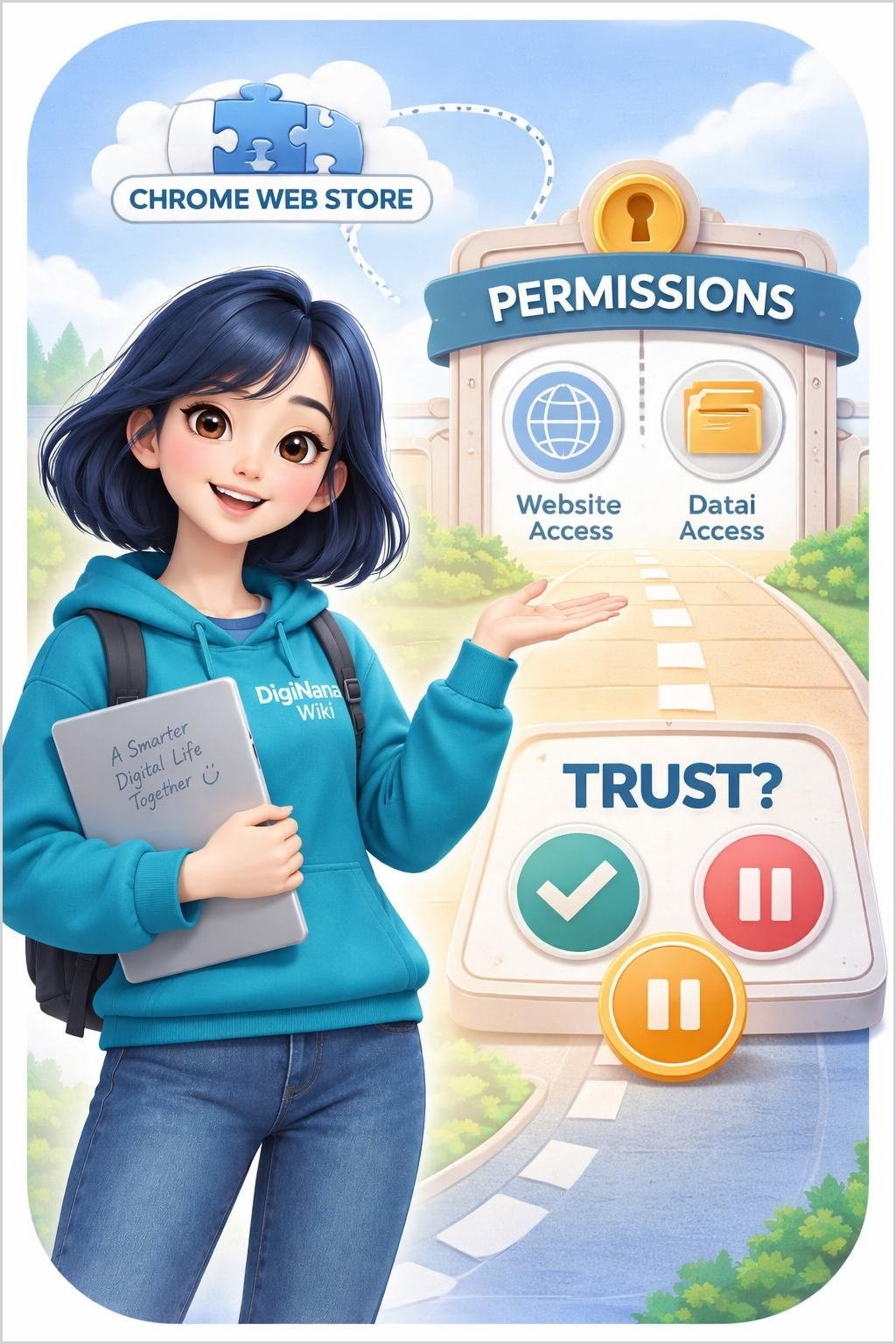
A user finds an extension in Chrome Web Store but does not approve it immediately. The user first reads its requested permissions and data access, then decides whether the extension and its access are acceptable. This example illustrates the review process and does not evaluate a particular extension.
Educational example: A Chromebook Android app
A user updates ChromeOS, checks that the Chromebook supports Android apps, and looks for an app in Google Play Store. Before continuing, the user considers compatibility and whether a work or school administrator has restricted installations. This scenario applies only to supported Chromebooks and is not an Android phone example.
Benefits, Limitations, and Trade-Offs

Using the stores and trusted sources identified by the official guidance gives beginners a clearer installation route. Permission controls, security warnings, updates, and antivirus or anti-malware tools also provide ways to review or manage software before and after installation.
These measures do not remove the need for user judgment. An extension may request access that a user does not wish to grant, and a program from an online source still requires the user to confirm that the publisher or website is trusted.
Compatibility is another limitation. Not every Android app works on every Chromebook, and managed work or school devices may prevent installation. Interfaces and control locations may also change, making current official documentation necessary for exact steps.
Some management actions have serious consequences. Turning off Google Play Store on a Chromebook erases Android app data and settings from that device. This trade-off must be understood before the setting is changed.
Common Misunderstandings About Installing Apps
- “Every Android app works on every Chromebook.” Some Android apps are incompatible with certain Chromebooks.
- “A Chrome extension can be approved without reviewing access.” Chrome recommends reviewing requested permissions or data and approving only extensions you trust. Site access can also be limited.
- “A work or school device always permits installations.” Administrators may restrict app installation on managed Chromebooks.
- “Turning off Google Play Store leaves Chromebook app information untouched.” Turning it off erases Android app data and settings from the Chromebook.
- “All operating systems use the same installation steps.” The verified instructions here cover only Windows programs, Chrome extensions, and Android apps on supported Chromebooks. Other platforms require their own current official guidance.
DigiNana Beginner Guide
Fictional educational scenario: DigiNana guides a beginner who wants to add a Chrome extension. Before approving anything, they confirm that the extension is being obtained through Chrome Web Store.
They then examine the permissions or data access requested by the extension. DigiNana explains that approval should occur only if the beginner trusts the extension and accepts the access it needs.
Later, the beginner decides that the extension should not have access on every website. They use Chrome’s extension controls to limit its site access. If the extension is no longer needed, they can disable or remove it.
This story is fictional and is not a real product test. The technical actions in it reflect the supplied Chrome Help guidance, while exact control locations should be checked in current official documentation.
Practical Tips

- Prefer the official stores and trusted sources covered by the references in this guide.
- Confirm the publisher or website before downloading a Windows program.
- Update ChromeOS before installing Android apps on a supported Chromebook.
- Review requested permissions, data access, site access, location access, and storage access where applicable.
- Check compatibility and administrator restrictions before assuming an app can be installed.
- Use available update controls after installation, including automatic updates where supported.
- Limit the site access of a Chrome extension when broad access is unnecessary.
- Disable or remove an unwanted Chrome extension.
- If a suspicious program may be changing extension files, use antivirus or anti-malware software as directed by current Chrome guidance.
- Read every warning before changing a service or setting that may erase data.
Data-loss warning: Do not turn off Google Play Store on a Chromebook without first understanding that the action erases Android app data and settings from the device. Review important data and consult current official backup guidance before taking this destructive action.
Safety, Privacy, Permissions, and Data Loss

Microsoft states that antivirus software such as Windows Defender typically scans programs for viruses during download. This is a useful security check, but users should still obtain programs only from trusted publishers and retail websites.
For Chrome extensions, Enhanced protection can warn when an extension is not trusted. Users should also review requested permissions or data and approve only extensions they trust. After installation, extension site access can be limited, and an extension can be disabled or removed.
On supported Chromebooks, users can review or change Android app permissions and control access to location and storage. These controls help users examine what an app can access after installation.
Important warning: Turning off Google Play Store erases Android app data and settings from the Chromebook. Before making this change, identify any important information that may be affected and consult current official documentation for available backup or preservation options.
Frequently Asked Questions
Where can I obtain Windows apps or programs?
Windows apps can be obtained through Microsoft Store. Programs from online sources should be downloaded only from trusted publishers and retail websites.
What should I review before adding a Chrome extension?
Confirm that it comes from Chrome Web Store, review its requested permissions or data access, and approve it only if you trust it. Pay attention to any warning from Chrome’s Enhanced protection.
Do all Android apps work on Chromebooks?
No. Some Android apps are incompatible with certain Chromebooks, and Android app support applies only to supported Chromebook models.
Can an administrator block an installation?
Yes. A work or school administrator may restrict app installation on a managed Chromebook.
Can I limit what websites a Chrome extension can access?
Yes. Chrome provides controls that can limit an extension’s site access. Use current Chrome Help documentation for the exact steps in your browser version.
What should I do if a suspicious program appears to be changing Chrome extension files?
Chrome’s guidance recommends running antivirus or anti-malware software when a suspicious program may be altering extension files.
What happens if I turn off Google Play Store on a Chromebook?
Turning off Google Play Store erases Android app data and settings from the Chromebook. Review important data and current official documentation before proceeding.
Does this guide provide installation steps for smartphones, macOS, or iOS?
No. The supplied sources do not verify current interface instructions for Android phones, iPhones, macOS computers, or iOS. Consult current official platform documentation for those devices and for any version-specific menu steps.
Final Takeaway
Use trusted publishers or the official stores covered by current platform guidance. Before approving an installation, review permissions and data access, check compatibility and administrator restrictions, and pay attention to available security warnings.
After installation, maintain available updates and manage, disable, or remove items that are no longer wanted. Most importantly, read data-loss warnings before changing installation services or settings, especially before turning off Google Play Store on a Chromebook.
References
- Install & use Android apps on your Chromebook – Chromebook Help
- Install and manage extensions – Google Chrome Help
- How to install programs from online sources on Windows | Microsoft Support
Image Credits
The five DigiNana Wiki visuals accompanying this article are original educational illustrations created with AI assistance. They are conceptual visuals and must not be interpreted as verified photographs, exact software interfaces, actual device specifications, or guaranteed technical configurations.
Disclaimer
This article provides educational information only. Software interfaces, menu locations, product features, compatibility, security conditions, permissions, administrator policies, and service availability can change. Verify important and platform-specific details through current official documentation before downloading software, changing settings, or taking any action that may remove data.