
Introduction
Learning how to uninstall software and apps safely helps you remove programs you no longer need without making unsupported changes to your device. The correct removal method and its limitations depend on the operating system and the application.
The verified instructions in this guide cover Windows 10, Windows 11, and macOS. Exact Android and iOS instructions are not included because verified mobile-platform instructions were not supplied. For a smartphone or tablet, consult the current official documentation for its operating system or device.
What Uninstalling Software and Apps Means
Uninstalling means using a supported removal process to take an application or program off a device. The process may involve operating-system settings, a control panel, an uninstaller supplied with the application, or another supported tool.
Removing an application is not necessarily the same as deleting files created with that application. Apple states that uninstalling a Mac app does not remove user-created files. It also does not cancel subscriptions associated with the app. Other platforms and applications may handle related data differently, so check files and account services separately.
Why Safe Uninstallation Matters

Using the supported removal process gives the operating system or application uninstaller an opportunity to carry out its intended removal steps. On a Mac, moving an eligible app to the Trash and emptying the Trash can reclaim the storage occupied by the app.
A supported process also helps avoid an incomplete removal caused by deleting only a visible shortcut or manually removing selected program files. Windows provides troubleshooting options for failed or incomplete removals.
Before uninstalling, identify any files you want to keep and determine whether the application is connected to a paid subscription. Do not assume that removing the application will delete personal files or cancel an account service.
How to Uninstall Apps on Supported Computer Platforms
Windows 11
Microsoft documents several ways to remove apps and programs in Windows 11. Available methods can depend on the type of application.
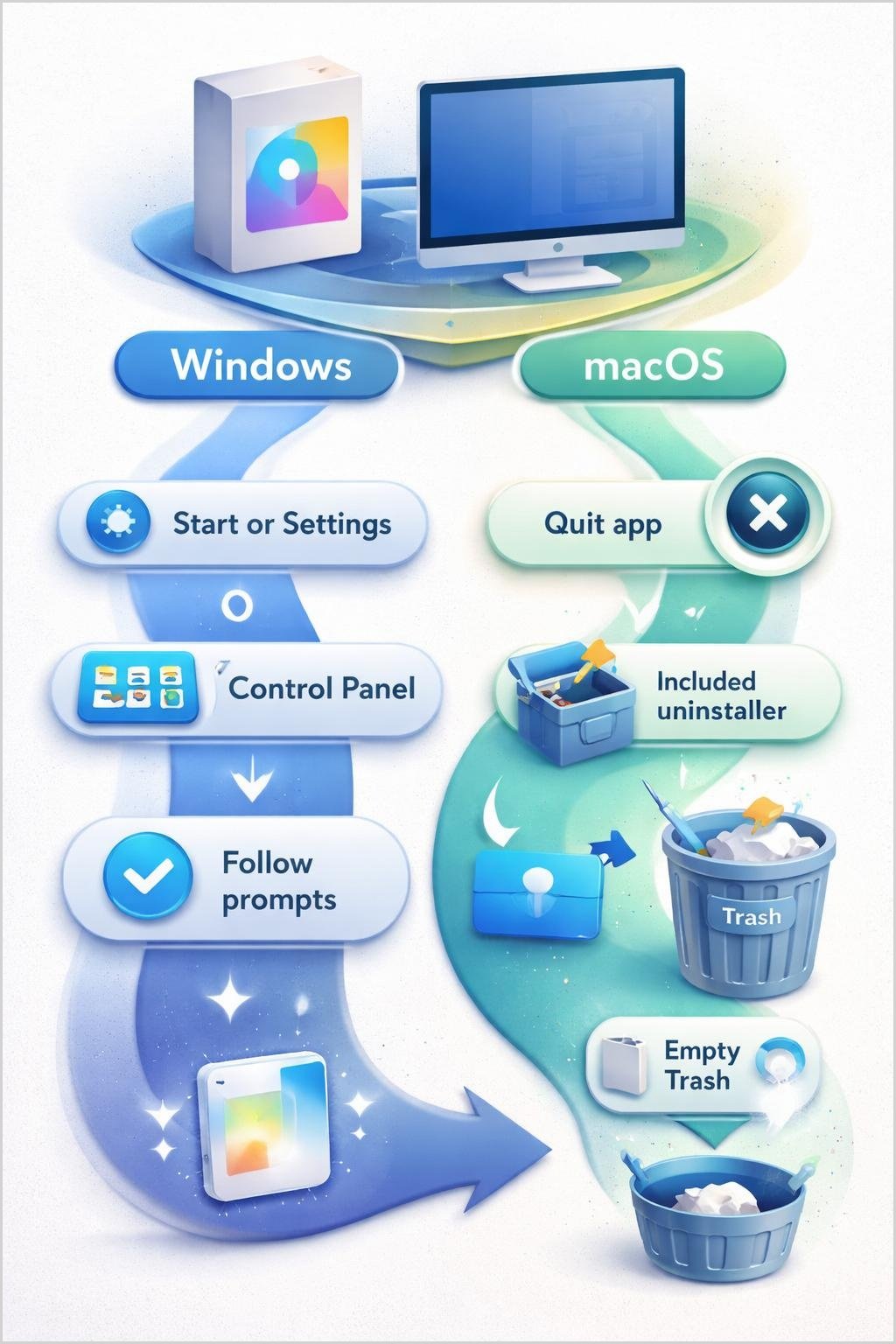
- To use Start, open Start, locate the app, right-click it, and select Uninstall.
- To use Settings, open Start > Settings > Apps > Installed apps.
- Find the app, select its More option, choose Uninstall, and follow the on-screen instructions.
- If the program must be removed through Control Panel, open Programs > Programs and Features, select the program, and choose Uninstall or Uninstall/Change.
Some built-in Windows apps cannot be uninstalled. Some programs must be removed through Control Panel rather than Settings.
Windows 10
For Windows 10, Microsoft also documents removal through Start, Settings, or Control Panel, depending on the application.
- From Start, locate the app, right-click it, and select Uninstall.
- Alternatively, open the Apps area in Settings, locate the application, and use its uninstall option.
- If the application cannot be removed there, open Control Panel > Programs > Programs and Features.
- Select the program and choose Uninstall or Uninstall/Change, then follow the instructions shown.
If a Windows 10 program is blocked from removal, Microsoft provides the Program Install and Uninstall troubleshooter. It can address problems such as incomplete uninstall information, corrupted registry keys, and programs that cannot be removed through Control Panel.
macOS
Apple’s documented Mac procedure begins by quitting the application.
- Quit the app before attempting to remove it.
- Locate the app in Finder.
- If the app includes its own uninstaller, use that uninstaller and follow its instructions.
- If no included uninstaller is available, drag the app to the Trash or select it and choose File > Move to Trash.
- Empty the Trash when you are ready to reclaim the storage occupied by the app.
Required macOS applications cannot be deleted through Finder. Uninstalling a Mac app does not remove user-created files or cancel subscriptions.
Android and iOS
Android and iOS removal steps are intentionally omitted because no verified mobile instructions were supplied for this article. Menu names and available options can change, so use current official Android, Apple, or device-manufacturer documentation for the exact procedure.
Important Tools, Settings, and Platform Differences

Windows removal tools
- Start: Provides a direct uninstall option for supported apps.
- Settings: Lists installed apps and provides removal controls for supported applications.
- Control Panel: Remains necessary for some programs that cannot be removed through Settings.
- On-screen instructions: Some uninstall processes require additional choices or confirmation after they begin.
- Repair or Reset: Microsoft recommends trying an application’s available Repair or Reset options when removal fails.
- Troubleshooting prompts: Windows may provide prompts for resolving a failed removal.
- Windows 10 troubleshooter: The Program Install and Uninstall troubleshooter can address specified installation and removal problems.
Windows interfaces and available options differ by version and application type. Some built-in applications cannot be removed, while some desktop programs require Control Panel instead of Settings.
macOS removal tools
- Finder: Helps users locate an installed app.
- Included uninstaller: Should be used when the app provides one.
- Trash: Receives eligible apps moved from Finder. Emptying it reclaims the storage occupied by those apps.
Not every Mac application can be removed by dragging it to the Trash. Required macOS apps cannot be deleted through Finder, and an app that includes an uninstaller should be removed with that tool.
Everyday Uninstallation Examples
Hypothetical example: an ordinary Windows desktop program
A beginner finds an unused desktop program in Windows. They first look for it in Settings and select its uninstall option. If it is not removable there, they check Programs and Features in Control Panel, select the program, and follow the displayed instructions.
Hypothetical example: a Mac app with an uninstaller
A Mac user wants to remove an application and discovers that it includes its own uninstaller. Instead of dragging the app directly to the Trash, the user quits the app, opens the included uninstaller, and follows its instructions.
Hypothetical example: a built-in app
A Windows user selects a built-in app but cannot find an available removal option. This does not necessarily indicate a fault because Microsoft states that some built-in Windows apps cannot be uninstalled. Required macOS apps similarly cannot be deleted through Finder.
These examples are educational scenarios rather than reports of real device tests.
Benefits, Limitations, and Trade-Offs
Uninstallation helps users manage applications they no longer need. On a Mac, emptying the Trash after moving an eligible app there can reclaim the app’s storage.
Removal methods are not identical for every program. A Windows program may require Settings, Control Panel, or troubleshooting, while a Mac app may require its included uninstaller instead of ordinary Trash removal.
Some built-in Windows apps and required macOS apps cannot be removed through the documented ordinary methods. Removal can also fail because of installation or uninstall information problems.
Uninstalling a Mac app does not remove user-created files or cancel subscriptions. This separation can help preserve documents, but it also means users must review unwanted files and ongoing services independently.
Common Misunderstandings About Uninstalling
“Uninstalling always deletes my personal files.”
This is not correct for the documented Mac process. Apple states that removing a Mac app does not remove user-created files. Do not assume all applications or platforms manage associated data identically.
“Removing an app cancels its subscription.”
Apple states that uninstalling a Mac app does not cancel subscriptions. Subscription management is a separate task and should be checked through the appropriate account or service documentation.
“Every Windows app can be removed from Settings.”
Some Windows programs must be removed through Control Panel rather than Settings. The appropriate option depends on the application.
“All built-in applications are removable.”
Microsoft states that some built-in Windows apps cannot be uninstalled. Apple also states that required macOS apps cannot be deleted through Finder.
“Deleting a visible icon is the same as uninstalling.”
A visible icon may be only an entry point to a program. Use the supported Windows removal tools or the documented Mac process rather than manually deleting selected items.
DigiNana Beginner Guide
Fictional educational example: DigiNana decides to remove an application from a Mac. This story illustrates the verified procedure and is not a report of a real device test.
- DigiNana first checks whether the app was used to create any important files and protects the files she wants to keep.
- She checks separately whether the app is connected to a subscription because removing a Mac app does not cancel subscriptions.
- She quits the application.
- In Finder, she locates the app and checks whether it includes an uninstaller.
- Because an included uninstaller is available in this hypothetical example, she uses it and follows its instructions.
- After removal, she verifies her files and separately reviews any subscription associated with the service.
The technical lesson is to protect important files, close the app, use the removal method intended for the platform and application, and handle subscriptions separately.
Practical Tips
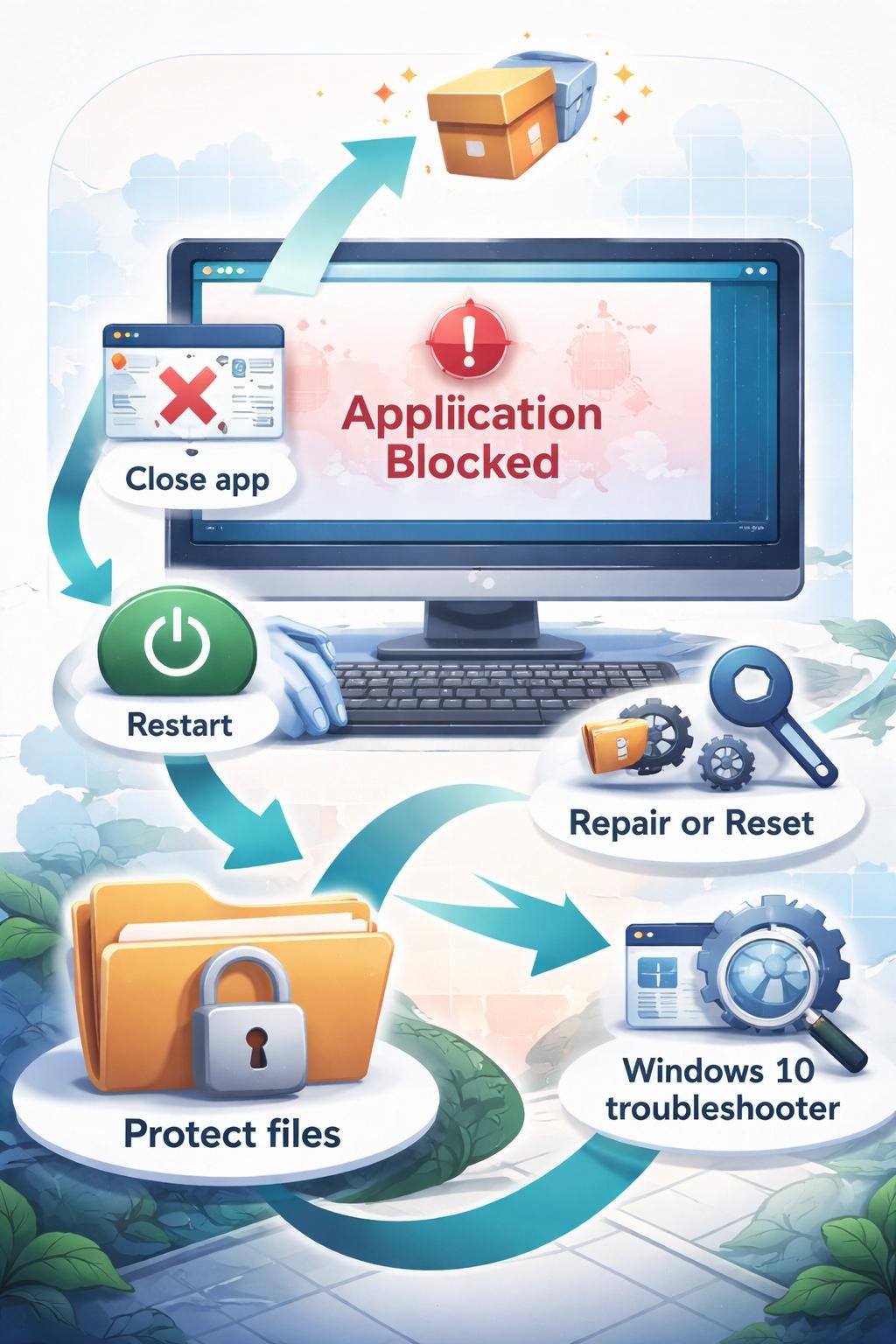
- Protect important files before starting any destructive removal operation.
- On a Mac, quit the app before removing it.
- Use a Mac app’s included uninstaller when one is provided.
- On Windows, follow all on-screen uninstall instructions rather than interrupting the process.
- If Windows removal fails, restart the computer and try again.
- Check whether the Windows app offers Repair or Reset options where available.
- Follow relevant Windows troubleshooting prompts when they appear.
- For a blocked Windows 10 removal, use Microsoft’s Program Install and Uninstall troubleshooter as documented by Microsoft.
- Do not manually delete program folders, registry entries, or unfamiliar system files as a substitute for supported removal instructions.
Repair, Reset, and troubleshooting options are not the same as uninstalling. They are possible steps for addressing an application or removal process that is not working correctly.
Safety, Privacy, Backups, and Data-Loss Risks

Before uninstalling, back up or otherwise protect important files. Check which information was created by you and which files belong to the application itself. Avoid deleting unfamiliar data when its purpose is uncertain.
For macOS, Apple specifically states that uninstalling an app does not remove user-created files. Those files may therefore remain after the application is gone. A Mac app subscription also remains separate from the removal process and is not canceled by uninstalling.
Do not assume that every application, operating system, or account service handles data in the same way. Consult current official documentation when the removal may affect important documents, stored information, account access, or a paid service.
Software interfaces and security conditions can change. Official operating-system and application documentation should be used to verify current menu locations and removal requirements.
Frequently Asked Questions
Does uninstalling an app delete personal files?
Not necessarily. Apple states that uninstalling a Mac app does not remove user-created files. Handling may differ elsewhere, so protect important files and consult current documentation for the relevant application and platform.
Does uninstalling cancel a subscription?
No, not for the documented Mac process. Apple states that removing a Mac app does not cancel subscriptions. Review the subscription separately through the appropriate service or account documentation.
Why does a Windows app not appear in Settings?
Some Windows programs must be removed through Control Panel rather than Settings. Open Programs and Features, select the program, and use Uninstall or Uninstall/Change when that method applies.
Can every built-in app be removed?
No. Some built-in Windows apps cannot be uninstalled, and required macOS apps cannot be deleted through Finder.
What should I try if a Windows program will not uninstall?
Restart the computer and try again. Microsoft also recommends trying available Repair or Reset options or following Windows troubleshooting prompts. On Windows 10, the Program Install and Uninstall troubleshooter may help with specified installation and removal problems.
When should I use a Mac app’s included uninstaller?
Use the included uninstaller when the app provides one. If it does not, Apple’s documented process allows an eligible app to be moved to the Trash through Finder.
How do I uninstall an app on Android or iOS?
This article does not provide mobile steps because verified Android and iOS instructions were not supplied. Consult current official Android, Apple, or device documentation for exact instructions.
Final Takeaway
Use the removal method intended for both the operating system and the application. Windows programs may be removed through Start, Settings, or Control Panel, while Mac apps may require an included uninstaller or removal through Finder and the Trash.
Protect important data before destructive actions, and do not assume that uninstalling deletes personal files or cancels subscriptions. If a Windows removal fails, use the verified restart, Repair, Reset, or troubleshooting options that apply. For Android or iOS, consult current official mobile documentation rather than relying on unverified menu instructions.
References
- Uninstall or remove apps and programs in Windows – Microsoft Support — https://support.microsoft.com/en-us/windows/uninstall-or-remove-apps-and-programs-in-windows-4b55f974-2cc6-2d2b-d092-5905080eaf98
- Fix problems that block programs from being installed or removed | Microsoft Support — https://support.microsoft.com/en-us/windows/deployment/install-upgrade/fix-problems-that-block-programs-from-being-installed-or-removed
- Delete or uninstall apps on Mac – Apple Support — https://support.apple.com/en-us/HT202235
Image Credits
The five DigiNana Wiki visuals accompanying this article are original educational illustrations created with AI assistance. They are conceptual visuals and must not be interpreted as verified photographs, exact software interfaces, actual device specifications, or guaranteed technical configurations.
Disclaimer
This article provides general educational information. Software interfaces, menu locations, product features, security conditions, and service availability can change. Consult current official Microsoft, Apple, Android, application-provider, or device documentation whenever exact steps or important technical details must be verified.