
Introduction
Learning how to transfer files between phone and computer can make everyday file management easier, whether you want to work with photos, videos, or other files on a larger device. The verified guidance in this article concerns transfers involving an iPhone and either a Mac or Windows computer.
Apple documents several transfer routes. These include a cable connection, external storage, a file server, and cloud storage. Exact procedures can vary according to the devices, services, and current software involved.
What File Transfer Means
File transfer means copying or moving a file from one device or storage location to another. In this article, the starting point is usually an iPhone, while the destination may be a computer, external storage, a file server, or a cloud storage service.
Photos and videos are common examples, but Apple also refers more generally to other files. The transfer method and available options may depend on the file, device, service, and software being used.
Why Phone-to-Computer File Transfer Matters

Transferring files allows people to access and manage iPhone files on a Mac, Windows computer, or another storage location. For example, someone may want to view phone photos on a computer or place videos in a separate storage location.
A transfer can also help organize where files are kept. However, transferring a file does not by itself confirm that the destination copy is complete, so important files should be checked before the originals are removed.
How File Transfer Works

Apple documents multiple routes for transferring files involving an iPhone. The appropriate route depends on the available devices, storage locations, and services.
Direct cable connection
A cable can provide a direct connection between an iPhone and a Mac or Windows computer. The current official instructions for the relevant devices and software should be followed because interfaces and procedures can change.
External storage
An external storage device can act as another location for files. In a phone-to-computer workflow, a file may be transferred to the storage device and then accessed from the computer, provided the devices and storage arrangement support the intended process.
File server
A file server is a system that provides a shared location for storing and accessing files. Apple identifies a file server as one possible route for transferring files from an iPhone.
Cloud storage
A cloud storage service keeps files through an online service rather than requiring a direct phone-to-computer cable for the entire transfer. Apple identifies iCloud, Box, and Dropbox as examples of cloud storage services that may be used in this type of workflow.
A cable creates a direct device connection. External storage, a file server, and cloud storage instead provide another location through which the file can be stored or accessed.
Connections, Services, and Other Requirements

The required components depend on the chosen method. A direct transfer involves an iPhone, a Mac or Windows computer, and an appropriate cable connection. Other methods require access to external storage, a file server, or a cloud storage service.
| Method | Main components | Role |
|---|---|---|
| Cable connection | iPhone, Mac or Windows computer, and cable | Connects the phone directly to the computer. |
| External storage | iPhone and a suitable external storage arrangement | Provides another storage location for the file. |
| File server | iPhone and access to a file server | Provides a shared location for storing or accessing files. |
| Cloud storage | iPhone and access to a supported cloud storage service | Provides an online location through which files can be stored or accessed. |
Exact connection requirements, permissions, interfaces, and compatibility details can vary. Current official documentation should be consulted before selecting equipment or following a specific procedure.
Everyday File Transfer Examples
Educational example: transferring photos by cable. A person connects an iPhone to a computer to transfer selected photos. They follow the current official instructions for the phone, computer, and software rather than relying on menu names from an older guide.
Educational example: transferring videos through external storage. A person places selected videos in an external storage location and then accesses that storage from a computer. The person confirms that the intended devices and storage arrangement support the process before beginning.
Educational example: using a file server. A person transfers a file from an iPhone to an available file server so that it can be accessed from a computer with suitable access.
Educational example: using cloud storage. A person uses a service such as iCloud, Box, or Dropbox as an intermediary between an iPhone and a computer. These scenarios illustrate possible workflows and are not reports of real-world product tests.
Benefits, Limitations, and Trade-Offs
A cable provides a direct connection between an iPhone and a computer. This may suit a person who has the required devices and connection available, but the exact procedure depends on the current hardware and software.
External storage provides a separate location for files, while a file server provides a shared storage location. Each method depends on appropriate access and a supported configuration.
Cloud storage can provide an online intermediary between an iPhone and a computer. Its availability and procedure depend on the chosen service, the devices, and the current software involved.
No single route should be assumed to work with every file, device, service, or configuration. Speed, cost, security conditions, and other practical characteristics should be checked using current official information rather than assumed.
Common Misunderstandings About File Transfer
A cable is the only option
A direct cable connection is one option, but Apple also documents transfers involving external storage, a file server, or cloud storage.
Every method works with every setup
The existence of several transfer routes does not mean that every file, device, service, or configuration is universally compatible. Requirements and procedures can differ.
A visible file can be deleted from the original device immediately
Seeing a filename at the destination is not a reason to remove the original without further checking. Open or otherwise verify the transferred file where appropriate, and protect important files with a backup before taking a destructive action.
All phones use the same instructions
This article is based on verified Apple guidance for iPhone transfers. It does not provide Android instructions, and instructions for another operating system should not be inferred from the iPhone guidance.
DigiNana Beginner Guide
Fictional educational example: DigiNana wants to move selected photos from an iPhone to a computer. Before touching any files, she identifies the source as the iPhone and the intended destination as the computer.
She then considers the documented routes: a direct cable connection, external storage, a file server, or a cloud storage service. She chooses only a method supported by her current devices and services and follows current official instructions.
After the transfer, DigiNana checks the destination files rather than assuming that the process succeeded. She keeps the originals and any important backup until she is satisfied that the transferred files are accessible. DigiNana is fictional, and this example illustrates planning rather than a verified product test.
Practical Tips
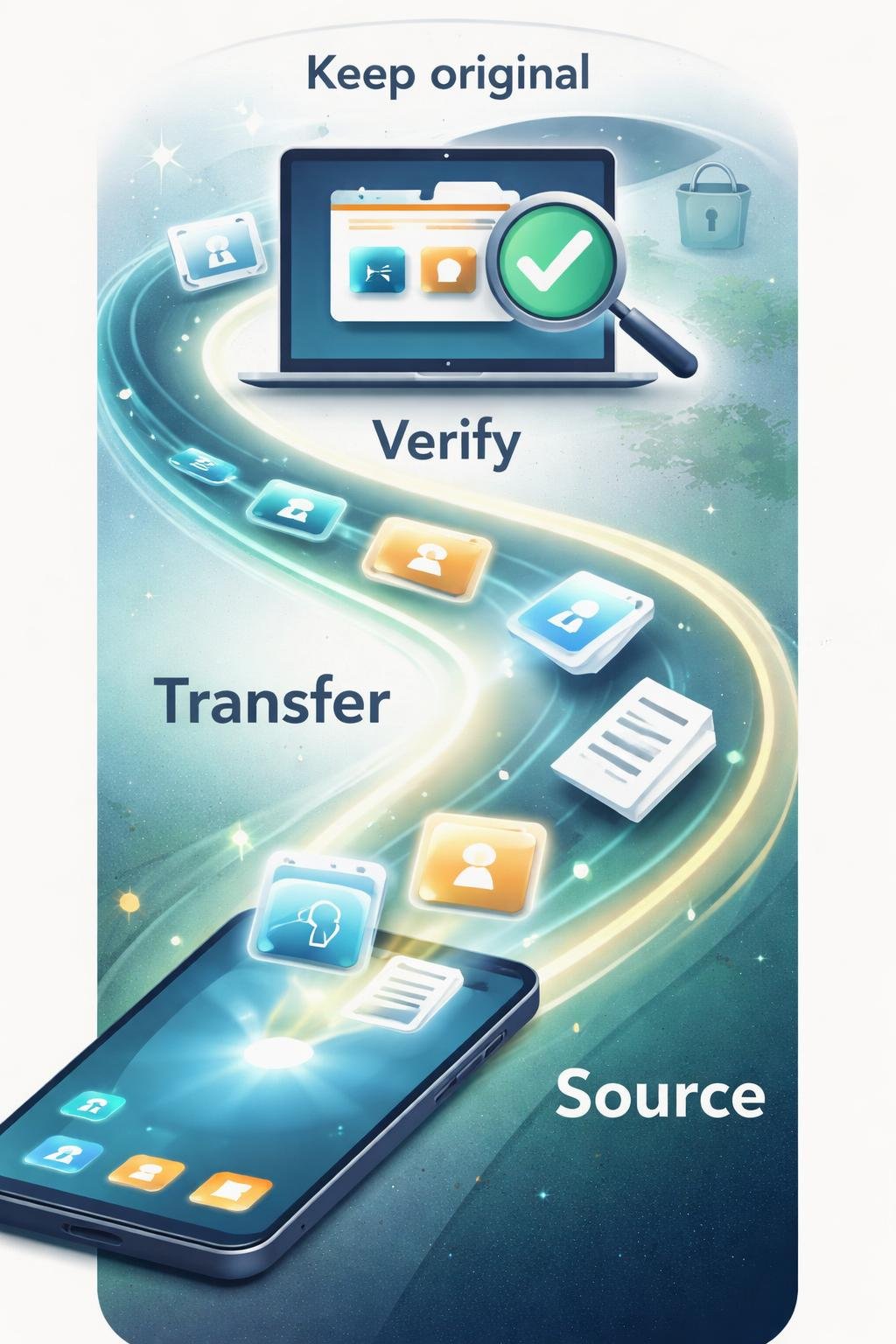
- Identify the source and destination. Decide which files are leaving the iPhone and where they should go.
- Choose the transfer route. Consider a cable, external storage, a file server, or a cloud storage service according to your supported setup.
- Confirm access. Make sure the intended file is accessible on the iPhone and that you can use the destination.
- Use current instructions. Follow official documentation for the relevant devices, software, storage, or service.
- Transfer a manageable selection. When appropriate, start with a limited selection so that you can confirm the workflow before handling more files.
- Check the result. Confirm that the intended files reached the correct destination and can be accessed there.
- Protect important originals. Back up important files and do not delete, erase, or overwrite originals until the transfer has been verified.
If a transfer does not work, recheck the selected method, the source and destination, required access, and the current official instructions. Avoid experimenting with deletion, formatting, or other destructive operations as a troubleshooting shortcut.
Safety, Privacy, and Data-Loss Precautions

Consider who can access the destination before transferring private files. This applies to computers, external storage devices, file servers, and cloud storage services.
Review access requests and permissions carefully. Grant only the access needed for the intended transfer, and use current official guidance for the device or service rather than assuming that an older interface still applies.
No transfer method should be treated as an automatic security guarantee. Security conditions can depend on the device, storage location, service, account access, software, and current configuration.
Back up important files before deleting originals, replacing files, changing storage arrangements, or taking any other action that could cause data loss. Confirm the destination copy before making a destructive change.
Frequently Asked Questions
Can an iPhone transfer files to a Mac or Windows computer?
Yes. Apple documents transfers involving an iPhone and either a Mac or Windows computer. The exact procedure depends on the devices and current software.
Do I have to use a cable?
No. A cable is one documented route, but Apple also identifies external storage, a file server, and cloud storage as possible transfer routes.
Which cloud storage services does Apple identify in its guidance?
Apple gives iCloud, Box, and Dropbox as examples of cloud storage services in its file-transfer guidance.
What should I check before deleting an original file?
Confirm that the intended file reached the correct destination and can be accessed there. Keep a backup of important files and avoid deleting the original until the transfer has been verified.
Do these instructions also apply to Android phones?
This article does not provide verified Android instructions. Consult current official documentation for the specific Android device, computer operating system, and transfer method involved.
Final Takeaway
Apple documents multiple ways to transfer photos, videos, and other files involving an iPhone. These routes include a cable connection with a Mac or Windows computer, external storage, a file server, and cloud storage.
Choose a method supported by the devices and services involved, follow current official instructions, and check the transferred files before deleting originals. Backups and careful verification help protect important files from accidental loss.
References
- Transfer files between your iPhone and other devices – Apple Support — https://support.apple.com/guide/iphone/transfer-files-between-devices-iph339bafff3/27/ios/27
- Transfer files from iPhone to a storage device, a server, or the cloud – Apple Support (CA) — https://support.apple.com/en-ca/guide/iphone/iphe9aff429a/27/ios/27
Image Credits
The five DigiNana Wiki visuals accompanying this article are original educational illustrations created with AI assistance. They are conceptual and must not be interpreted as verified photographs, exact software interfaces, actual device specifications, or guaranteed technical configurations.
Disclaimer
Technical information, software interfaces, product features, security conditions, and service availability can change. Consult current official documentation for your devices and services before relying on specific procedures, permissions, or compatibility details.