
Introduction
Learning how to lock your phone or computer is a basic step toward preventing other people from accessing the device without permission. A screen lock is especially useful when a device is unattended, shared, lost, or stolen.
Device locking can involve a personal identification number (PIN), a password, a biometric method such as a fingerprint or face scan, and a setting that locks the screen automatically after inactivity. These measures reduce unauthorized physical access, but they should be combined with wider account, privacy, malware-prevention, backup, and recovery practices.
What Device Locking Is
Device locking is an access-control measure that places a phone or computer in a restricted state. Normal access resumes only after the device accepts an authorized authentication method.
A PIN or password is a knowledge-based credential because access depends on something the authorized user knows. Biometric authentication uses a measured physical characteristic, such as a fingerprint or facial features. Available methods and their exact behavior depend on the device, operating system, and current configuration.
Automatic locking is a related setting that causes the device to lock after a selected period of inactivity. Manual locking allows the user to lock it immediately instead of waiting for the automatic setting.
Why Locking Your Devices Matters

An unlocked device may expose open applications, messages, stored files, account sessions, or other information to someone who can physically reach it. Locking adds a barrier between the person holding the device and its normal functions.
This barrier matters when a phone is left on a table, a computer is unattended in a shared area, or a device is lost or stolen. It can also help separate access among people who use the same computer, provided that each person uses the appropriate account and follows the device’s supported access controls.
A lock does not guarantee that the device or its information will remain safe in every situation. It is one defensive layer rather than a complete security system.
How a Screen Lock Works
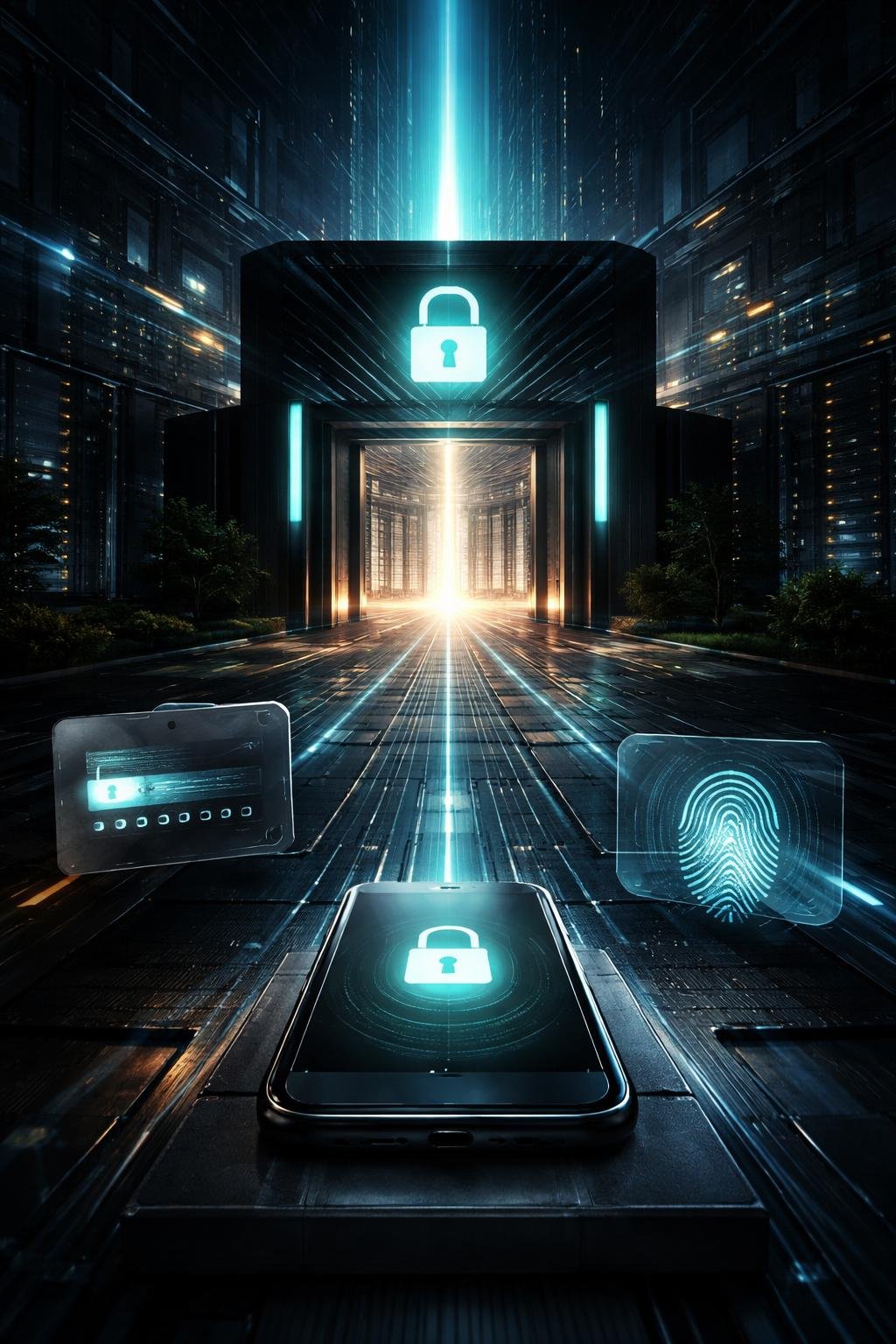
When a device enters its locked state, its normal interface is restricted. The user must provide an accepted authentication method before ordinary access resumes.
The lock screen may still show limited information or controls. What remains visible varies by device and configuration, so users should review current privacy and notification settings rather than assume that locking hides everything.
Manual locking activates the restricted state when the user chooses to do so. Automatic locking provides a fallback after inactivity, but it does not replace the habit of locking a device before stepping away.
PINs, Passwords, Biometrics, and Automatic Locking

| Component | Role | Important consideration |
|---|---|---|
| PIN | A knowledge-based credential entered as a sequence of characters, commonly digits. | It should not be easily guessed or shared with other people. |
| Password | A knowledge-based credential that may allow a broader set of characters, depending on the system. | Its availability and requirements vary, so current official instructions should be checked. |
| Biometric authentication | Uses a measured physical characteristic to authenticate a user. | It is not infallible, and devices may still require a PIN or password in some circumstances. |
| Automatic locking | Locks the device after a configured period of inactivity. | The timing should balance convenient use with the risk of leaving the device accessible. |
| Lock-screen controls | Determine which information or limited functions may remain available while locked. | Visible notifications and controls should be reviewed for unwanted information exposure. |
These components work together rather than serving identical purposes. A PIN or password can act as the underlying knowledge-based credential, while a biometric method may provide another way to authenticate. Automatic locking determines when the access barrier is activated after inactivity.
Everyday Device-Locking Examples
Hypothetical example: Locking a phone before setting it down. A person places a phone on a table in a shared room. Before doing so, the person manually locks the screen instead of relying only on the inactivity timer.
Hypothetical example: Leaving a computer briefly. A user steps away from a computer to answer a door. The user activates the computer’s supported lock command first, reducing the chance that someone nearby can use the open session.
Hypothetical example: Automatic locking as a fallback. A user forgets to lock a device manually. After the configured inactivity period, automatic locking places it in the locked state. This fallback is useful, but promptly locking the device remains the safer habit when stepping away.
Benefits and Limitations of Screen Locks
A screen lock can discourage casual inspection and restrict ordinary access by someone who picks up an unattended device. It can also reduce immediate exposure when a device is lost or stolen.
However, a screen lock does not protect against every threat. It does not by itself stop phishing, remove malware, secure a compromised online account, create backups, or guarantee successful recovery after loss or damage.
Information displayed on the lock screen may also create a privacy concern. Depending on current settings, notification previews or other limited details might remain visible. Users should inspect the available privacy controls on their own devices.
Screen locking is therefore one layer in a broader defensive approach. No locking method guarantees complete protection.
Common Misunderstandings About Device Locks
Biometrics cannot fail
Biometric authentication should not be treated as infallible. Its behavior and limitations vary across implementations, and an underlying PIN or password may still be important for access and recovery.
Manual locking makes automatic locking unnecessary
Manual locking is useful when stepping away, but people can forget. Automatic locking provides a fallback when the device remains inactive.
A locked screen protects every account
A device lock controls physical access to the device’s active environment. Online accounts still need their own credentials, appropriate authentication protections, and safe recovery arrangements.
A screen lock stops phishing and malware
Locking does not determine whether a message is fraudulent or whether software is harmful. Phishing awareness, cautious software installation, and current security maintenance address different risks.
Recovery information can be shared safely
Passwords, authentication codes, and recovery secrets should not be exposed to people or services that are not authorized to receive them. Legitimate recovery should use the device or account provider’s current official channels.
DigiNana Beginner Guide
Fictional educational scenario: DigiNana is helping a beginner prepare a new device for everyday use. This scenario illustrates decisions rather than describing a verified interface or a specific product.
First, DigiNana asks the beginner to open the device’s current official security settings and review the supported locking methods. The beginner selects an appropriate PIN or password that is not based on an obvious personal detail and keeps it private.
If a supported biometric option is chosen for convenience, DigiNana explains that the underlying credential must still be remembered and protected. The beginner also enables automatic locking for times when manual locking is forgotten and practices locking the device before walking away.
Finally, DigiNana directs the beginner to review the provider’s official recovery information. Recovery details are stored safely and are not sent through messages or disclosed in response to unexpected requests. The scenario does not establish that one method is suitable for every device or user.
Practical Tips

- Use the device’s current official settings or documentation to find its screen-lock controls.
- Choose a supported credential that is not easily guessed from obvious personal information.
- Keep PINs and passwords private, and do not disclose authentication or recovery secrets.
- Enable automatic locking as a fallback after inactivity.
- Lock the device manually whenever you step away, even if the absence is expected to be brief.
- Review what notifications, message previews, or controls are visible on the lock screen.
- Confirm that you understand the official recovery process before a problem occurs.
- Recheck official documentation after major software or device changes because interfaces and available options may change.
Menu names and procedures vary among systems. Instructions from the current device manufacturer, operating-system provider, or authorized service should be used instead of assuming that steps for another product will apply.
Safety, Privacy, and Recovery
Prevention includes locking the device, protecting its credential, limiting unwanted lock-screen information, maintaining software, treating unexpected messages cautiously, using appropriate account protections, and keeping suitable backups. These measures address different risks and should not be viewed as interchangeable.
Phishing messages may try to persuade a person to reveal a password, authentication code, or recovery secret. Device owners should not provide such secrets in response to unexpected requests. A locked screen also does not make untrusted software safe, so software should be obtained and maintained through appropriate official channels.
Incident response begins after a credential is forgotten, a device is lost, or unauthorized access is suspected. Use the provider’s current official recovery or lost-device guidance from another trusted device where possible. Procedures differ by platform and service, so unverified recovery instructions should be avoided.
Do not post or send passwords, authentication codes, recovery phrases, or similar secrets when seeking help. If account exposure is suspected, follow the relevant provider’s official account-security process and review affected accounts from a trusted environment.
Frequently Asked Questions
Should I use a PIN, password, or biometrics?
Use a method supported by your device that you can manage securely. PINs and passwords are knowledge-based credentials, while biometrics use measured physical characteristics. A biometric option may still depend on an underlying credential. Consult current official documentation for the choices and behavior of your device.
When should automatic locking be enabled?
Automatic locking should be configured as a fallback for inactivity. The available timing choices vary, and the selected interval should not replace manual locking when you intentionally leave the device unattended.
Is a screen lock enough to protect my device?
No. It helps control physical access, but account protection, privacy settings, phishing awareness, malware prevention, software maintenance, backups, and secure recovery remain necessary considerations.
What should I do if I forget my credential?
Use the device or operating-system provider’s current official recovery guidance. Avoid unverified tools or people who ask for passwords, authentication codes, or recovery secrets. Recovery availability and its effect on stored information can vary, so do not assume a particular outcome without verified product documentation.
What should I do if my device is lost?
Consult the provider’s current official lost-device and account-security guidance using a trusted device. Review affected accounts and recovery options without revealing credentials or authentication codes to unexpected contacts. Available response features and procedures vary by product and service.
Final Takeaway

An appropriate screen lock helps restrict ordinary access to a phone or computer when it is unattended, shared, lost, or stolen. Protect the underlying PIN or password, use biometrics only with an understanding of their role, enable automatic locking, and lock the device manually before stepping away.
Device locking works best as one part of a broader plan that includes privacy controls, account protection, phishing awareness, malware prevention, software maintenance, backups, and safe recovery practices. No individual measure provides complete protection.
References
No verified source links were supplied for listing in this article. Source titles, URLs, and citations have not been fabricated.
Image Credits
The five DigiNana Wiki visuals associated with this article are original educational illustrations created with AI assistance. They are conceptual illustrations and must not be interpreted as verified photographs, exact software interfaces, actual device specifications, or guaranteed technical configurations.
Disclaimer
This article provides general educational information. Security threats, software interfaces, protective measures, product features, and service availability can change over time. Verify important settings, recovery procedures, and security details using current official documentation for the relevant device, operating system, or service. No security method guarantees complete protection.