Introduction
Learning how to free up storage space can help you make room for personal files, applications, and system operations without removing data you still need. The safest approach is to inspect what is using storage, protect important files, and review each suggested item before deleting or relocating it.
Computers and smartphones organize stored data into categories such as apps, downloads, personal files, temporary data, and offline cloud files. The available categories and cleanup tools depend on the operating system and version, so instructions for Windows, ChromeOS, and Android should not be treated as interchangeable.
What Freeing Up Storage Space Means
Device storage is the capacity used to keep apps, documents, photographs, videos, downloads, system files, and other data. Freeing storage space means reducing the amount of that capacity currently occupied.
Common methods include deleting unnecessary data, uninstalling unused apps, clearing temporary files, moving personal files to supported external storage, and making supported cloud files online-only. Online-only files remain represented on the device but do not keep their full contents in local storage.
Storage is different from working memory. Storage keeps files and applications, while working memory is a separate resource used while software is operating. Removing stored files creates storage capacity; it should not be described as increasing the device’s working memory.
Why Available Storage Space Matters
Available storage gives a person room to keep personal files, install or maintain apps, and support operations that require storage. The exact amount needed varies by device, operating system, installed software, and individual use.
Cleanup should not focus only on deleting as much data as possible. A safe cleanup protects important files and preserves recovery options. For example, deleting a previous Windows installation removes the option to return to that previous Windows version.
Careful review is especially important when a cleanup tool groups many items together. A category may contain files that are unnecessary for one person but important to another.
How Storage Cleanup Works on Different Devices
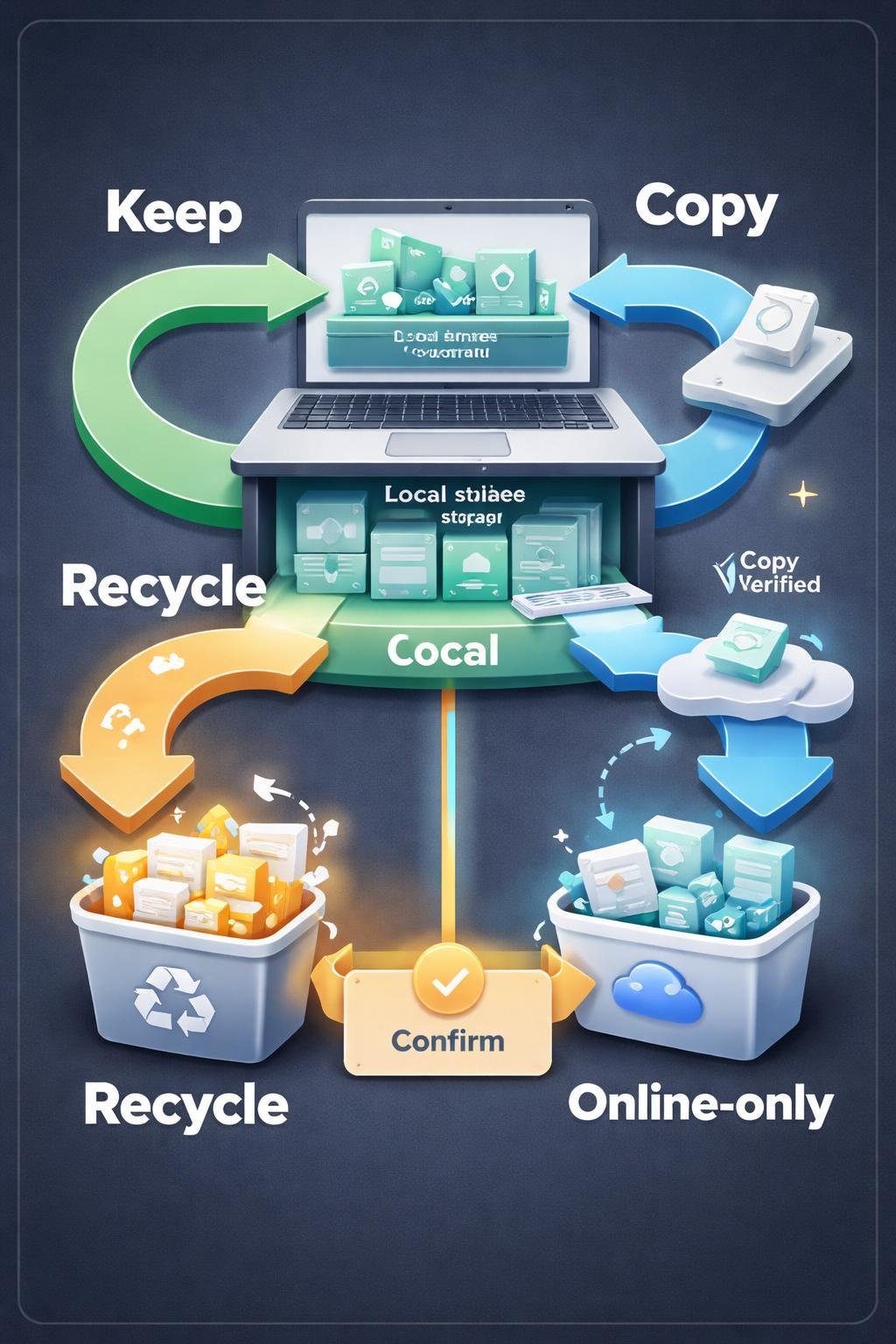
A typical cleanup process has five stages: inspect storage use, select a category, review its contents, decide whether to delete or relocate selected items, and confirm the result. Cloud services may also offer an online-only option that replaces a full local file with a small local placeholder.
Menus, labels, and available features vary by operating system and version. The following guidance is limited to the verified Windows, ChromeOS, and Android tools described in the sources. No macOS or iOS interface steps are provided because supporting documentation for those systems was not supplied.
Windows
On a Windows PC, File Explorer can show available drive space under This PC. Microsoft also documents Storage Sense, Cleanup recommendations, and Disk Cleanup as options for managing stored data.
Storage Sense is available on Windows 10 and Windows 11. It can automatically remove unnecessary temporary files and older Recycle Bin items. Downloads and cloud files are not managed unless the user explicitly configures those categories. Users can choose deletion timeframes, so the settings should be reviewed before automatic cleanup is enabled.
Cleanup recommendations or Disk Cleanup can help users review temporary files, system files, large or unused files, and unused apps before removal. Personal files can also be sorted by size and then deleted or moved to a USB drive or supported Secure Digital card, commonly called an SD card.
OneDrive Files On-Demand can represent cloud files with small local placeholders rather than keeping every full file on the device. Inactive cloud files can be made online-only without permanent deletion, while files marked “Always keep on this device” are excluded from that change.
Storage Sense operates only on the Windows system drive, which is typically C:. Microsoft directs users to Advanced storage settings to manage other drives. Previous Windows installations can be removed through the Temporary files area, but doing so permanently removes the option to return to the previous Windows version.
ChromeOS
On a Chromebook, Storage management shows storage used by downloads, offline Google Drive files, browsing data, Android apps and their data, and other users. A user can review these categories, delete unneeded files, move files to Google Drive, clear browsing data and download history, uninstall unused apps, or remove extra user accounts.
Removing an account from a Chromebook deletes that account’s locally stored files from the device. It does not delete the Google Account or connected information such as bookmarks. When Chromebook storage is low, ChromeOS may automatically delete downloads, browsing data, cached data, or unused accounts, which makes it important to understand what is stored only on the device.
Android
On Android 8.0 and later, Files by Google can help free storage by presenting categories such as temporary app files, duplicate files, recommended files, screenshots, and unused apps. Users can review these suggestions before deleting anything.
Files by Google can also move or copy files to other folders or an SD card when supported. Device support and interfaces can differ, so users should follow the current official guidance available for their Android device and software.
Files, Apps, Temporary Data, and Other Storage Categories

Storage tools divide data into categories to make review easier. Understanding those categories helps prevent accidental deletion.
- Personal files: Documents, photographs, videos, and other user-created or saved content. These files can be reviewed, deleted, or moved to supported external storage.
- Downloads: Files saved from websites, messages, or other services. A Downloads folder may contain both disposable installers and important documents, so it should be checked item by item.
- Temporary files: Data created for temporary use by the operating system or applications. Built-in Windows tools and Files by Google can identify supported temporary-file categories.
- Recycle Bin items: Files placed in the Windows Recycle Bin continue to occupy storage until the Recycle Bin is emptied.
- Browsing data: Chromebook Storage management can identify browsing data for cleanup.
- Offline cloud files: These are cloud-connected files whose full content is also stored locally for offline use. Changing a supported file to online-only can reduce local storage use without permanently deleting the cloud file.
- App data and unused apps: ChromeOS can show Android apps and their data. Built-in tools on the covered platforms can also help identify apps that are no longer used.
- Other user accounts: Chromebook Storage management can show storage associated with other users. Removing an account affects locally stored files belonging to that account.
- Previous Windows installations: A previous installation may be available as Windows.old. Deleting it removes the ability to return to the previous Windows version.
A USB drive or supported SD card can provide another location for personal files. Files by Google can move or copy data to an SD card, while Microsoft documents moving Windows personal files to a USB drive or SD card. OneDrive placeholders offer a different approach by keeping supported files in the cloud rather than storing every full file locally.
Everyday Storage-Cleanup Examples
Illustrative example: reviewing large Windows files. A user opens the Windows storage tools, sorts personal files by size, and reviews the largest items first. The user keeps needed documents, moves selected personal files to a USB drive, and deletes only confirmed unwanted files.
Illustrative example: cleaning up a Chromebook. A Chromebook user opens Storage management and notices that an unused app occupies storage. After confirming that the app is no longer needed, the user uninstalls it instead of deleting unrelated personal files.
Illustrative example: reviewing Android suggestions. A person using Android 8.0 or later opens Files by Google and reviews suggested duplicate files and screenshots. The person compares the files before selecting any for deletion rather than accepting every suggestion automatically.
Illustrative example: relocating personal files. A user copies important files to supported external storage and verifies that the copies can be accessed. The originals are removed only after that verification. These examples illustrate cautious workflows and are not reports of real device tests or guaranteed results.
Benefits, Limitations, and Trade-Offs
Built-in storage tools can organize data into reviewable categories and reduce the work involved in locating temporary files, unused apps, or large personal files. Automatic options can also handle selected categories according to the user’s configuration.
These tools do not remove the need for judgment. A cleanup recommendation does not establish that every listed item is safe or unnecessary. Downloads, screenshots, offline files, and old personal files may still be valuable.
- Windows Storage Sense applies only to the system drive. Other drives require separate management.
- Storage Sense does not manage Downloads or cloud files unless the user explicitly configures it to do so.
- Online-only files save local space, but the full content must be retrieved from the cloud when needed. That retrieval requires network access.
- Storage categories and cleanup features differ across Windows, ChromeOS, and Android.
- Permanent deletion can remove personal data or eliminate recovery options.
Moving files to an external drive keeps them available without occupying the original device’s storage, but the user must manage and protect the external device. Cloud placeholders reduce local use, but access to the full online-only file depends on the cloud service and a network connection.
Common Misunderstandings About Device Storage
“Moving a Windows file to the Recycle Bin immediately reclaims its space.”
A file in the Recycle Bin continues to use drive space. The Recycle Bin must be emptied to reclaim that space, but emptying it is a destructive action and should follow a final review.
“Everything suggested by a cleanup tool is automatically safe to delete.”
Cleanup tools identify categories and candidates for review. They cannot determine whether a particular download, screenshot, offline file, or app is personally important to the user.
“Making a cloud file online-only permanently deletes it.”
For supported OneDrive files, making an inactive file online-only removes the full local copy without permanently deleting the cloud file. Files marked “Always keep on this device” are exempt from this automatic cloud-file handling.
“Removing an account from a Chromebook deletes the Google Account.”
Removing a Chromebook account deletes its locally stored files from that Chromebook. It does not delete the Google Account or connected information such as bookmarks.
“Windows.old can always be restored after deletion.”
Deleting Windows.old permanently removes the option to return to the previous Windows version. It should not be deleted until the user understands and accepts that consequence.
DigiNana Beginner Guide
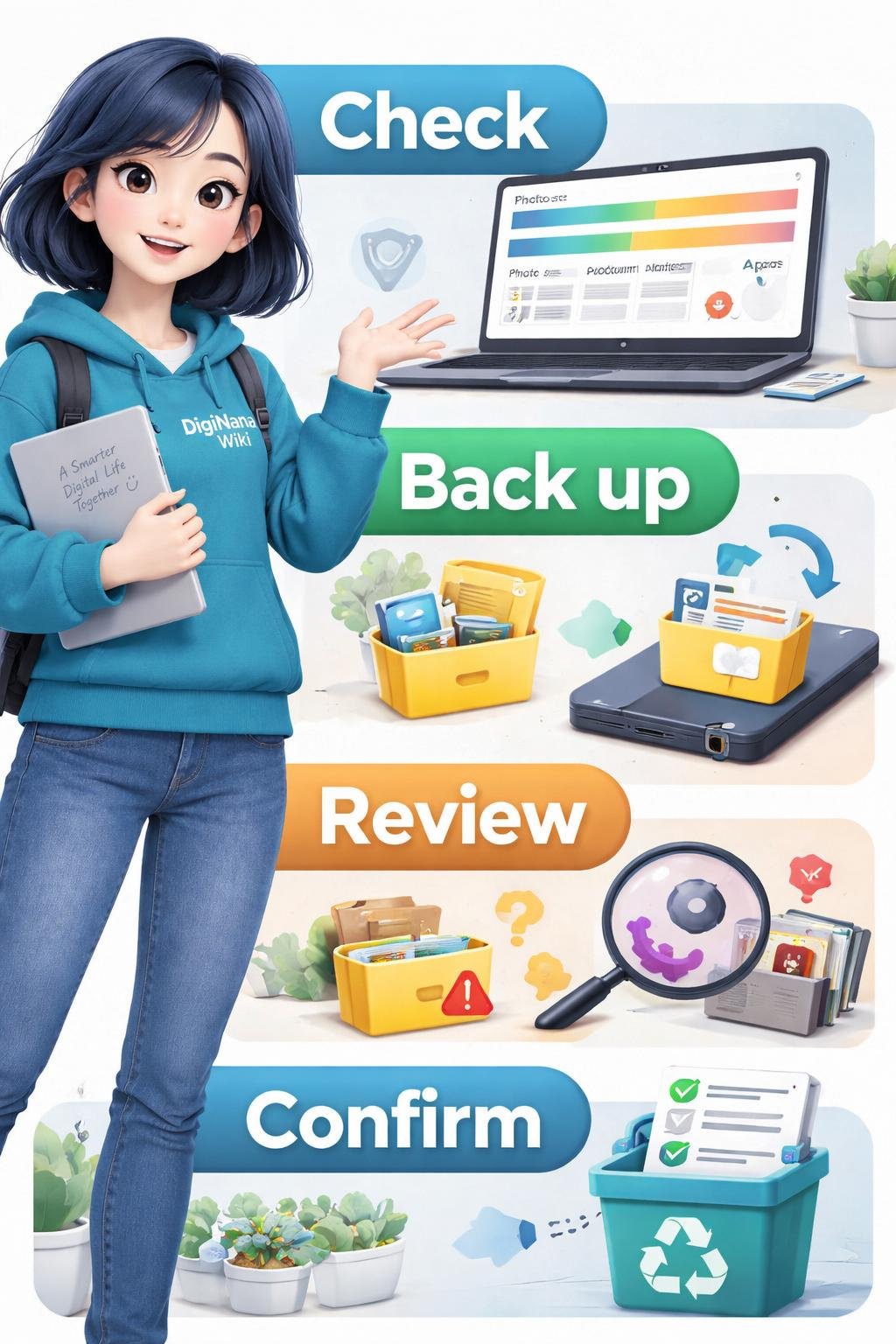
Hypothetical educational example: DigiNana is a fictional guide helping a beginner clean a device cautiously. This narrative illustrates a workflow; it is not a report of a real test.
- DigiNana first checks the device’s storage overview to identify which categories use space.
- She backs up important personal files and verifies that the backup is accessible.
- She reviews one category at a time instead of selecting every cleanup suggestion at once.
- She moves selected personal files to supported external or cloud storage and confirms that they remain accessible.
- She deletes only items that have been identified as unnecessary.
- On Windows, she reviews the Recycle Bin and empties it only when she is certain that its contents are no longer needed.
- She checks the storage overview again to confirm the result.
The verified platform facts behind this example are that Windows tools can display and manage storage categories, Chromebook Storage management can show categories such as downloads and apps, and Files by Google can present supported Android cleanup suggestions. The fictional example does not guarantee a particular amount of recovered space.
Practical Tips
- Start with the operating system’s built-in storage tools rather than an unverified cleanup application.
- Back up important files and verify the backup before deleting originals.
- Review large or unused files individually. File size alone does not show whether a file is important.
- Uninstall apps only after confirming that they are no longer needed.
- Move personal files to supported external or cloud storage when deletion is not appropriate.
- When configuring automatic cleanup, check every enabled category and its deletion timeframe.
- Review the Windows Recycle Bin before emptying it. Emptying it is required to reclaim the space used by its contents.
- Inspect Downloads carefully because the folder may contain important saved files.
- Before clearing offline cloud files, confirm that the cloud copy exists and understand that online-only content must be retrieved when needed.
- Before removing a Chromebook account, protect any files stored only in that account’s local device storage.
- Do not delete a previous Windows installation unless you accept losing the option to return to that version.
- If malware may be consuming storage on Windows, Microsoft includes running an antivirus scan among its troubleshooting options.
Automatic cleanup can be useful, but it should be configured deliberately. In particular, Windows Downloads and cloud-file handling require explicit Storage Sense configuration rather than being managed automatically by default.
Safety, Privacy, and Backup Precautions
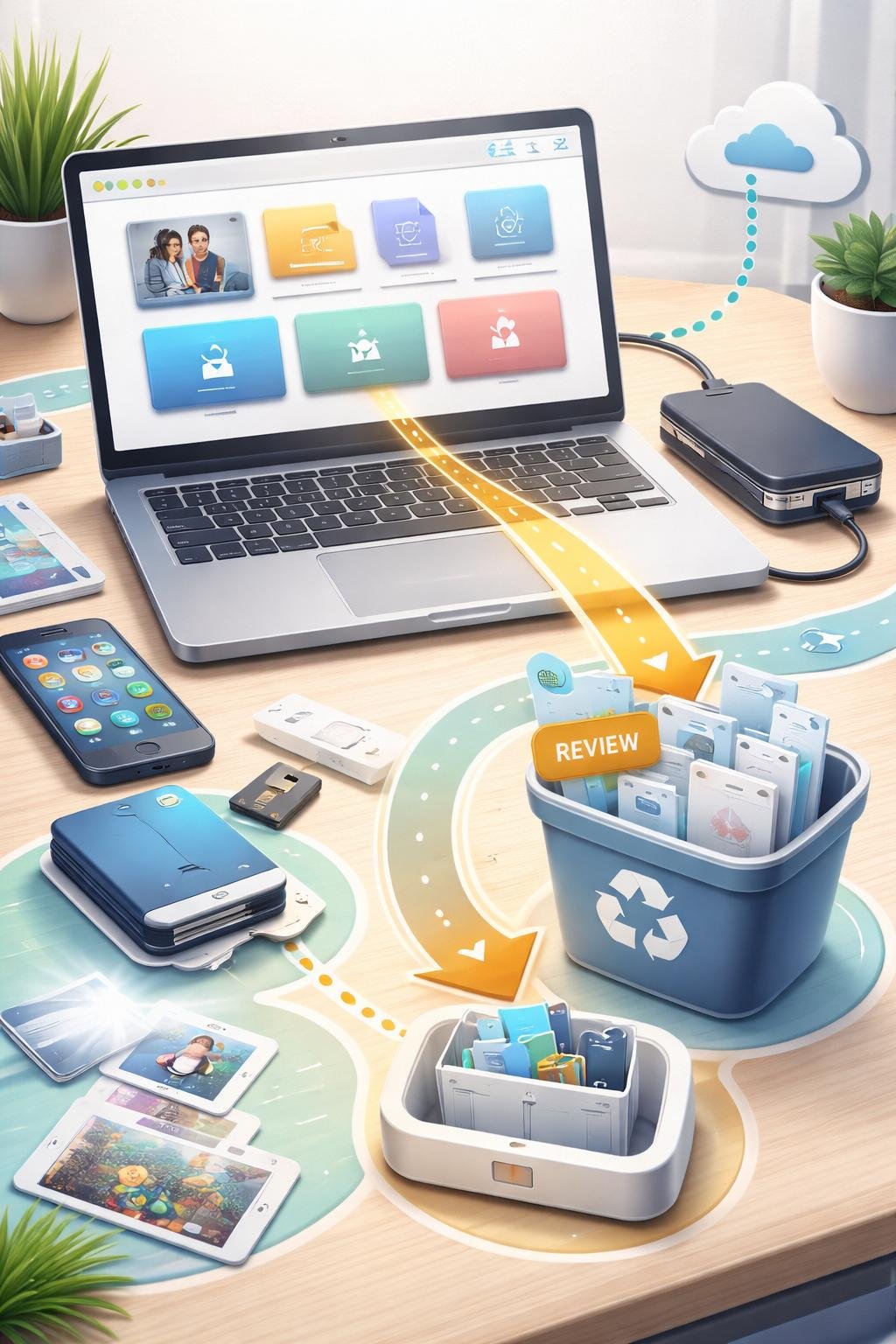
A backup is useful only if the required files are present and accessible. Before destructive cleanup, verify important documents, photographs, and other personal data in the backup location. Do not assume that a copy succeeded merely because a transfer appeared to begin.
Check whether a file exists locally, in the cloud, or in both places. Removing a local offline copy is different from permanently deleting the corresponding cloud file. An online-only file retains its cloud copy but requires retrieval when its full contents are needed.
Chromebook account removal requires similar care. Removing an account does not delete the Google Account, but it does remove that account’s locally stored files from the Chromebook. Files that exist only locally should be protected first.
Removable media can contain sensitive personal data. Keep USB drives and SD cards in an appropriate location and confirm that copied files are accessible before deleting the originals from the device.
Deleting Windows.old has a separate recovery consequence: it removes the option to return to the previous Windows version. This action should be treated differently from routine removal of temporary files.
Use built-in storage tools and consult current official documentation instead of relying on unverified cleanup applications. This reduces the risk of following unsupported menu instructions or granting unnecessary access to personal files.
Frequently Asked Questions
Do files in the Windows Recycle Bin still use storage?
Yes. Recycle Bin items continue to occupy drive space until the Recycle Bin is emptied. Review its contents before permanent removal.
Does Windows Storage Sense delete Downloads automatically?
Downloads are not managed unless the user explicitly configures Storage Sense to manage them. Review the selected category and deletion timeframe before enabling that behavior.
What does an online-only OneDrive file mean?
It means the device keeps a small local placeholder instead of the full file. The cloud file is not permanently deleted, but its complete contents must be retrieved when needed. Files marked “Always keep on this device” remain exempt from automatic online-only handling.
Can deleting Windows.old be reversed?
Deleting Windows.old permanently removes the option to return to the previous Windows version. Do not remove it unless that recovery option is no longer required.
What happens when I remove an account from a Chromebook?
The account’s locally stored files are removed from the Chromebook. The Google Account and connected information such as bookmarks are not deleted.
What can Files by Google review?
On Android 8.0 and later, Files by Google can present temporary app files, duplicate files, recommended files, screenshots, and unused apps for review. It can also move or copy files to other folders or an SD card.
What should I do if my operating system or menus look different?
Do not guess based on instructions for another platform or version. Consult current official documentation for the exact operating system, device, and software version before deleting data. This is especially important for macOS, iOS, or differently versioned systems not covered by the supplied platform guidance.
Final Takeaway
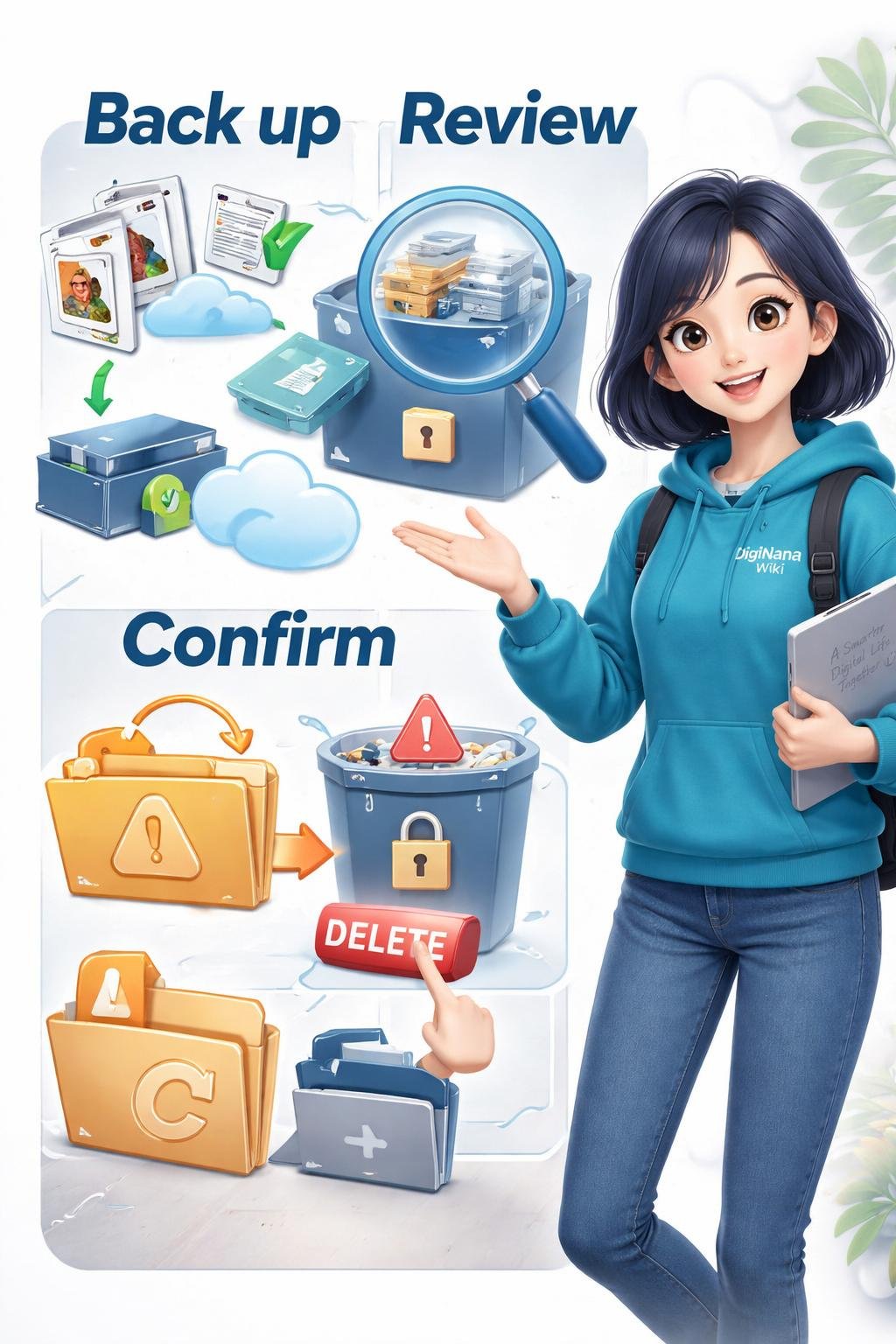
The safest storage-cleanup sequence is to inspect storage use, protect and verify important data, choose the correct built-in tool for the operating system, and review one category at a time. Move files when deletion is unnecessary, understand the difference between local and cloud copies, and confirm the consequences before permanent removal.
Windows, ChromeOS, and Android provide different storage tools and categories. Interfaces and available options can vary by platform and version, so current official instructions should take priority over unfamiliar or mismatched steps.
References
- Free up drive space in Windows | Microsoft Support — https://support.microsoft.com/en-us/windows/experience/storage-filemanagement/free-up-drive-space-in-windows
- Free up space on your Chromebook – Chromebook Help — https://support.google.com/chromebook/answer/1061547?hl=en
- Manage drive space with Storage Sense | Microsoft Support — https://support.microsoft.com/en-us/windows/experience/storage-filemanagement/manage-drive-space-with-storage-sense
- How to use Files by Google – Files by Google Help — https://support.google.com/files/answer/9848742?hl=en
Image Credits
The five DigiNana Wiki visuals accompanying this article are original educational illustrations created with AI assistance. They are conceptual visuals and must not be interpreted as verified photographs, exact software interfaces, actual device specifications, or guaranteed technical configurations.
Disclaimer
This article provides educational technical information. Software interfaces, product features, security conditions, and service availability can change. Consult current official documentation for your operating system, device, and software before deleting data or following version-dependent instructions.